Set up the Player
We recommend using a Raspberry Pi 5 (4 GB) as a player, since it has been battle-tested by us and our clients.
You can either buy a plug-and-play prebuilt kit or get a Raspberry Pi 5 from any local distributor.
x86 PCs
For Intel-based PCs such as the ASUS NUC, follow these steps:
- Get an Intel NUC (NUC7CJYHN2 or better), RAM, and an SSD.
- Download the disk image.
- Flash it onto an SSD of at least 32 GB (e.g. with Balena Etcher).
- Put the NUC together (insert at least 4 GB of RAM and the SSD).
- Enter the BIOS (press
F2orDel) and enable Turn On After Power Failure. - After booting up, the latest version of the app downloads in the background and three words appear on the screen. Enter those words in the Bohemica Signage Dashboard.
ARM (Raspberry Pi)
For ARM players, follow these steps:
- Get a Raspberry Pi 5 or better and an endurance SD card.
- Download the disk image.
- Flash the SD card with Balena Etcher or a similar tool.
- Insert the SD card into the Raspberry Pi 5. After booting up, the latest version of the app downloads in the background and three words appear on the screen. Enter those words in the Bohemica Signage Dashboard.
Pair the Player with the Dashboard
Go to app.bsgn.cc, open Displays, and choose Add new display. You can set attributes such as the name, location, and orientation of the Display.
To pair this Display with your Player, enter the Device ID (three English words) in the Device ID field.
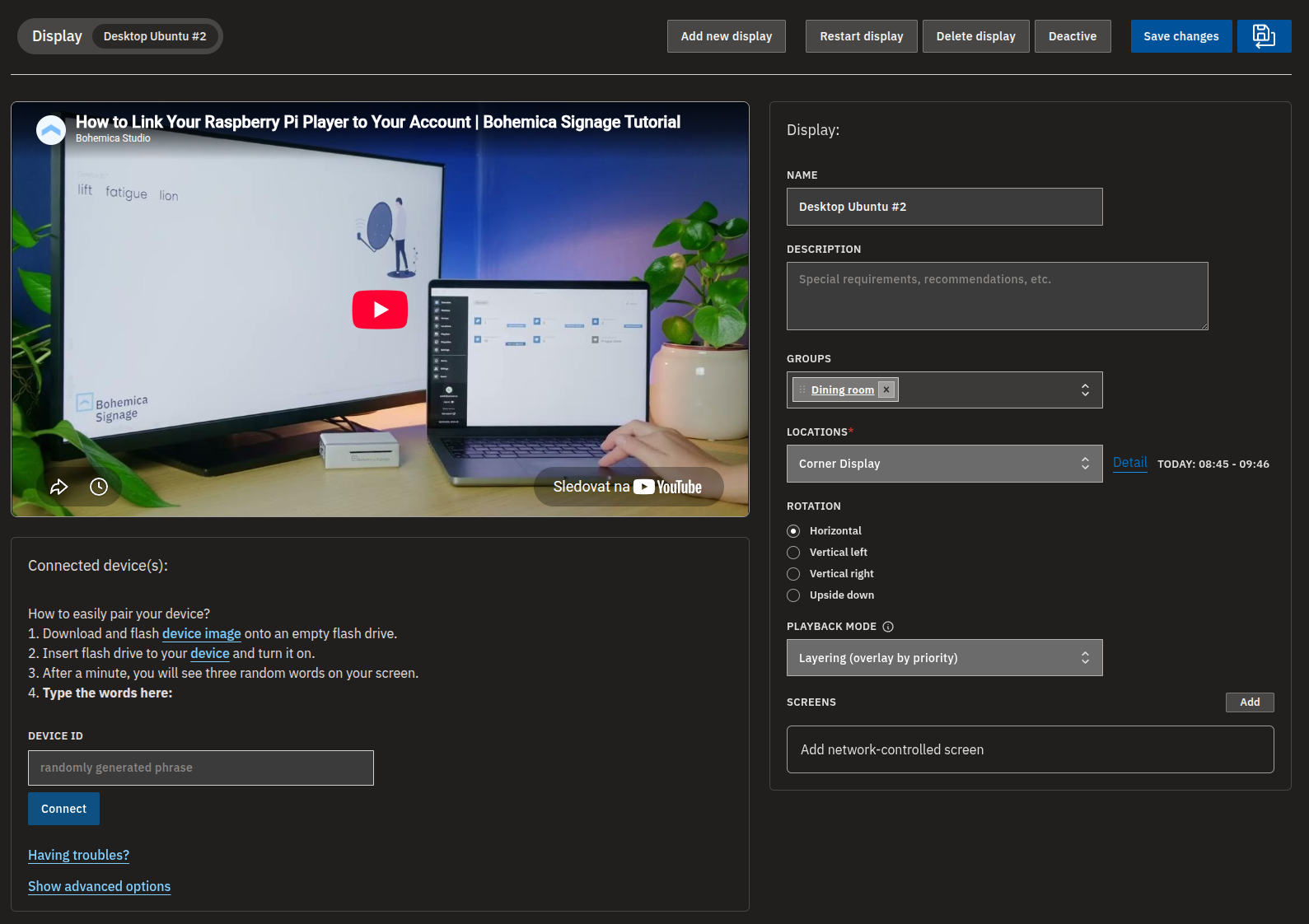
Or watch the step-by-step video:
Info
The Device ID (three words) is tied to the device's MAC address and motherboard ID, so even if you format the hard drive, the Player will reconnect automatically next time.
Once paired, the Player is tied to your account. To unpair it, open the Device in app.bsgn.cc and delete it — the Player goes back to showing its three words and can be paired again, on this account or another one.
If the Player still shows the old pairing after you've deleted the Device in the dashboard, connect to it locally or over SSH, remove its cached sign-in data, and restart it:
rm -f /home/signage/mediaserver-client-app-linux-*/cache/authResult.json \
      /home/signage/mediaserver-client-app-linux-*/cache/authTenantServerResult.json
sudo reboot