Creating Playlists
A playlist is the list of content your screens play: you line up media from your media library, set how long each item stays on screen, and choose which display groups play it. Creating one is quick, and the calendar and priority settings give you fine control over what plays when. This article walks you through the whole flow.
Create a new playlist
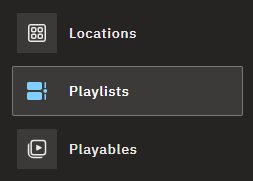
- Go to the Playlists tab in the dashboard.
- Click Add new playlist in the top-right corner.
- Name the playlist and click the Add new playlist button.
💡 Building an in-store audio stream?
Turn on the Audio only switch as you create the playlist to get looping background music with scheduled ad spots — see Audio-Only Playlists. The choice can't be changed later.
Add your media
A playlist can hold videos, images, audio, and web pages (URLs):
- Click Add playable.
- Pick the type of playable you want to add.
Content has to exist in the Playables section before you can add it to a playlist — if it isn't uploaded yet, do that first. See The Media Library for uploading and conversion.
Set durations and repeats
What you configure depends on the item type:
- Videos — set how many times the video repeats, then save.
- Images and URLs — set how long the item stays on screen. The format is hours : minutes : seconds : milliseconds.

Check the total length
The dashboard shows the playlist's total length at the bottom — the sum of all the item durations and their repeat settings. If you plan to synchronize this playlist with another one, the totals must match perfectly: even a 1 millisecond offset has an effect.
Schedule it with the calendar
The Calendar tab below the playlist's item list controls when the playlist is active. You can:
- set the hours and minutes when it should play,
- limit it to certain days of the week,
- optionally give it a start and end date.

For everything conditions can do — and how they combine — see Scheduling and Priority.
Handle overlapping playlists
When several playlists are active at the same time, priority decides which one takes precedence:
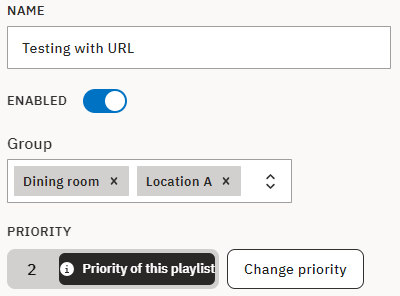
- Go to the Priority section and click Change priority.
- Set where this playlist ranks.
Scheduling and Priority explains how the ranking works across all your playlists.
Choose display groups
Pick the display groups that should play this playlist from the dropdown. Multiple groups can share the same playlist.
Save
Save the playlist before you leave the page. Once saved, it joins your screens' media rotation according to the conditions and priority you've set.
FAQ
Where does the media in a playlist come from?
A: From the Playables section — your media library. Upload the file there first, then add it to the playlist with Add playable.
Can one playlist play on several groups of screens?
A: Yes. Multiple display groups can share the same playlist — just select them all in the group dropdown.
Why does the total length matter?
A: It matters when you want two playlists to run in sync: their total lengths must match perfectly, and even a 1 millisecond offset has an effect. The dashboard shows the total at the bottom of the playlist.
Need help?
For deeper scheduling, see Scheduling and Priority; for keeping many playlists tidy, see Organizing Playlists. And if a playlist isn't behaving the way you expect, contact our support team — we'll be glad to help.