Business Hours and Time Zones
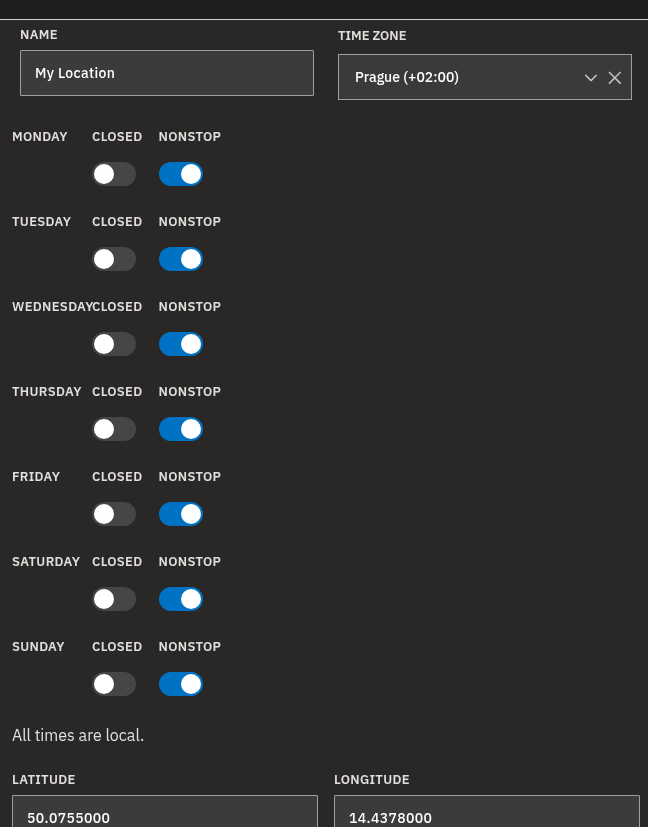
Every Location in Bohemica Signage holds two settings that control when your screens are awake: a Time zone and a weekly Business Hours schedule. Set them once on the location, and every display assigned there follows along automatically. When the place is closed, the player goes idle and the screen sleeps to save energy. When you're open, it wakes back up.
This article walks you through setting the time zone, configuring opening hours for each day, copying one day across the whole week, and making a screen sleep after hours.
Info
Business hours and time zone live on the Location, not on individual displays. Displays inherit them, so a change here affects every display assigned to that location.
Why the time zone matters
The time zone tells Bohemica Signage what "local time" means for that place. Both the opening-hours schedule and your content scheduling are evaluated in the location's local time, not your own and not the server's. All times you enter on this page follow the location's time zone.
If the time zone is wrong, screens will sleep and scheduled content will play at the wrong real-world times, so it's worth getting right.
Set a location's time zone
- Open the location from the Locations list to view its detail page.
- Find the Time zone selector near the top of the form.
- Start typing to search and pick the correct zone for where the place physically sits. The list is grouped by continent (for example, Europe/Prague), and your browser's detected local zone is offered at the top for convenience.
- Click Save Changes to apply.
💡
Always pick the zone for where the screen lives, not where you happen to be sitting. That's what keeps closed periods and scheduled content lined up with the place's real local time.
Understand the three day states
Each weekday (Monday through Sunday) is one row in the Business Hours table. Every row can be in one of three states:
| State | What it means | Screen behavior |
|---|---|---|
| Closed | The place isn't open at all that day | Player goes idle, screen sleeps all day |
| nonstop | Open 24 hours | Screen stays active around the clock |
| Timed window | A start and end time you enter | Screen active during the window, idle outside it |
Each row has a Closed toggle and a nonstop toggle. With both off, you set a normal open/close window in the start and end time fields.
Info
Any weekday you never touch keeps the default that new locations start with: open nonstop (24/7).
Set opening hours for a single weekday
- On the location detail page, find the weekday rows (Monday through Sunday).
- To mark the place shut that day, turn on the Closed toggle for that row.
- To run the screen around the clock, turn on the nonstop toggle instead.
- For normal hours, leave both toggles off and enter the opening time in start and the closing time in end.
- Click Save Changes.
Warning
For a timed day, the start time must be earlier than the end time, so a single row can't cross midnight. An overnight window (for example, open 22:00 to 02:00) can't be entered as one day and won't save — fix the times and save again.
Info
Turning on Closed or nonstop clears that day's start and end times. If you switch back to a timed window later, you'll need to re-enter the times.
Apply one day's hours to the whole week
If most days share the same hours, set one day and copy it.
- Configure the Monday row first with a start and an end time. Copying works only from a timed window — a Closed or nonstop Monday can't be copied.
- Click Copy to all days next to Monday's end time. This copies Monday's window to every other weekday.
- Check that every weekday now matches Monday, adjust any exceptions, then click Save Changes.
💡
Copying only works from the Monday row — you can't copy any other day's hours across the week.
Make a screen sleep when the place is closed
- Open the location that the display is assigned to.
- Confirm the Time zone is correct so closed periods line up with real local time.
- Turn on Closed for any full days the place is shut, and set start/end windows for partial days.
- Click Save Changes. The player will go idle and the screen will sleep outside the open hours, then wake again when the place is open.
Saving your changes
Business Hours and time zone are saved along with the rest of the Location — until you change something, there's nothing to save. If you leave the page with unsaved edits, you'll be asked to confirm first, so nothing is lost by accident.
Info
The schedule has only the seven weekday rows, repeating every week. There's no way to add holidays, special closures, or one-off date exceptions.
Sensitive information
Warning
A location's detail page and its exports can include on-site network details such as router and WLAN settings, sometimes shown in clear text. The Locations Excel export in particular may contain network credentials. Treat these as sensitive, IT-only information and don't share them outside your technical team.
FAQ
Why does my screen turn off (go to sleep) at certain times?
A: The screen follows the Business Hours of the location it's assigned to. On days or times marked Closed, the player goes idle and the screen sleeps to save energy, then wakes again when the place is open.
Can I set special hours for a holiday or a single date?
A: No. Business Hours only has the seven weekday rows for a repeating weekly schedule. There's currently no holiday or one-off date exception feature.
How do I keep a screen on 24 hours a day?
A: Turn on the nonstop toggle for each day you want the screen always active. That keeps the player running around the clock for those days.
Why won't my hours save?
A: For a timed day, the start time must be earlier than the end time — check each weekday row for a start that comes after its end, fix it, and save again. Overnight windows crossing midnight aren't supported.
Do I have to set hours for every display?
A: No. Hours and time zone are set on the Location. Every display assigned to that location automatically inherits them, so you set them once per location.
Need help?
If your screens are sleeping or waking at the wrong times, double-check the location's Time zone first, then its weekday rows. For related setup, see Creating and Configuring Displays, Monitoring and Operating Displays, and Departments, Users & Roles. Still stuck? Reach out to your Bohemica Signage support contact.