Scheduling and Priority
Once you have built a playlist, you can decide exactly when it plays and how it behaves when it shares a screen with other playlists. Two settings do this work: the Calendar section controls the timing, and Priority controls which content wins when playlists overlap. This article goes beyond the basics in Creating Playlists and assumes you already know how to create a playlist and add items to it.
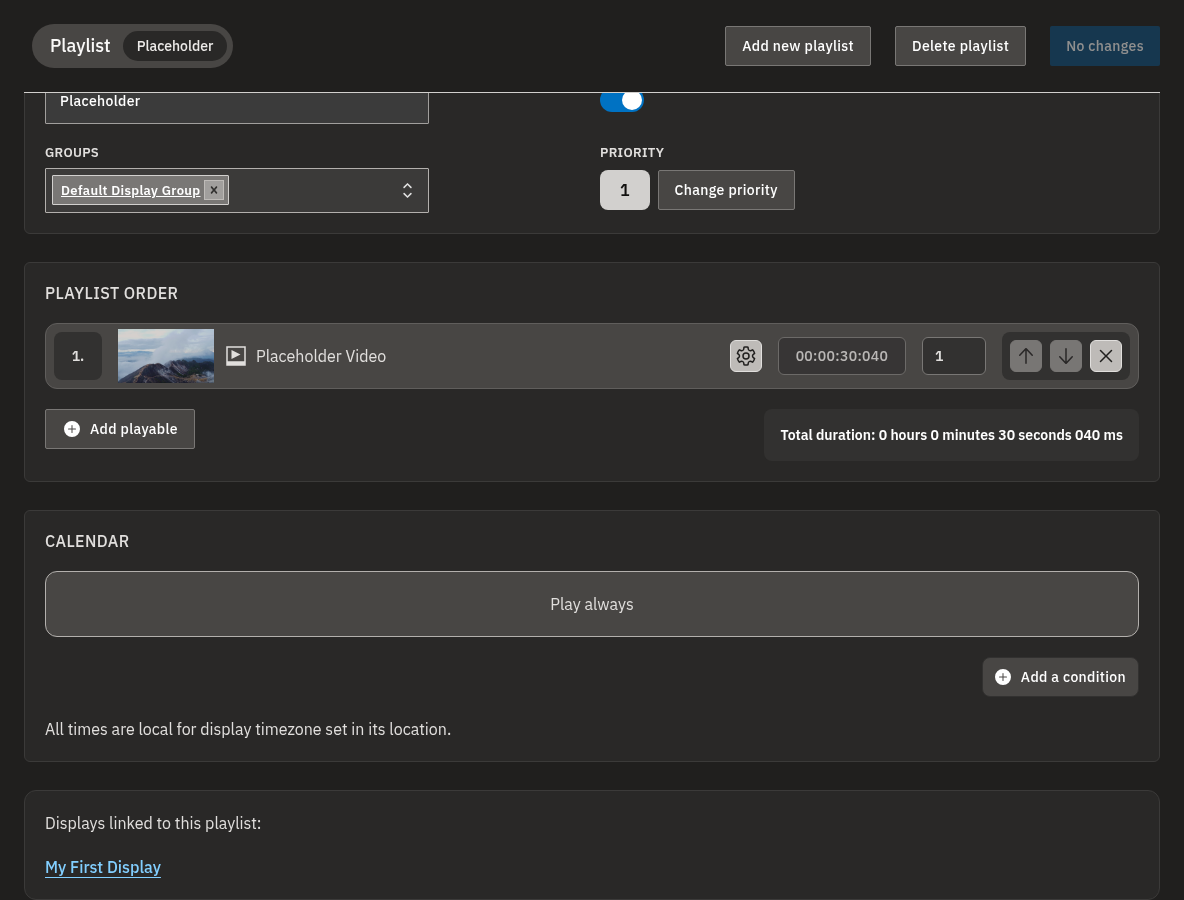
How scheduling works
Every playlist has a Calendar section that holds its scheduling conditions. If you haven't added any conditions yet, the Calendar shows Play always — meaning the playlist runs at all times whenever it is enabled and assigned to a display. To limit when it plays, you add one or more conditions.
You can build conditions around three things:
| Condition is about | What it controls | Options |
|---|---|---|
| the date | A start or end date boundary | ≥ is on or after or ≤ is on or before, plus a date |
| the time | A time of day | ≥ is after, ≤ is before, or = is between (a start and end time) |
| the weekday | Which days of the week | Toggle buttons Mon, Tue, Wed, Thu, Fri, Sat, Sun |
Info
When a playlist has two or more conditions, they combine as AND: every condition must be true at the same moment for the playlist to play. There is no built-in "either/or" within a single playlist — for OR-style scheduling, use separate playlists.
Schedule when a whole playlist plays
- Open the playlist and scroll to the Calendar section.
- If it shows Play always, the playlist currently plays at all times. Add conditions to narrow it.
- Click Add a condition.
- In the first dropdown, choose the date, the time, or the weekday.
- For a date: choose ≥ is on or after or ≤ is on or before, then pick a date.
- For a time of day: choose ≥ is after, ≤ is before, or = is between, then pick the time. is between needs both a start and an end time.
- For weekdays: click the day buttons (Mon–Sun) to choose the days it should play. (Monday through Friday start selected; click any day to toggle it on or off.)
- Add more rows to narrow it further — remember the rows are combined with AND, so all must be true at once.
- Click Save changes.
💡
To run a promo only at weekday lunchtimes, add a weekday row with Mon–Fri selected, then add a time row set to is between 11:00 and 14:00. The two rows combine with AND, so the playlist plays only on weekday lunchtimes.
Warning
A date or time picker must be fully filled in for a condition to save. An empty or half-finished is between range (for example, a start time with no end time) will block saving.
Times always follow the screen's time zone
Every condition is evaluated in each display's own local time zone — taken from that display's location — never your browser's time.
So the same playlist scheduled to a New York screen and a London screen starts at different absolute times, each following its own local clock. Make sure each display's location and time zone are set correctly. See Business Hours and Time Zones for more.
Limit a single playlist item to certain times
You can apply the very same Calendar tool to just one item in a playlist — handy when one image or video should only appear at certain times while the rest of the playlist runs normally.
- Open the playlist and find the item in the Playlist order list.
- On that item's row, open its conditions control to launch the Playlist item conditions panel.
- Add date, time, or weekday conditions exactly as you would for the whole playlist.
- Close the panel, then click Save changes on the playlist.
Only that item is restricted; the other items keep playing as usual.
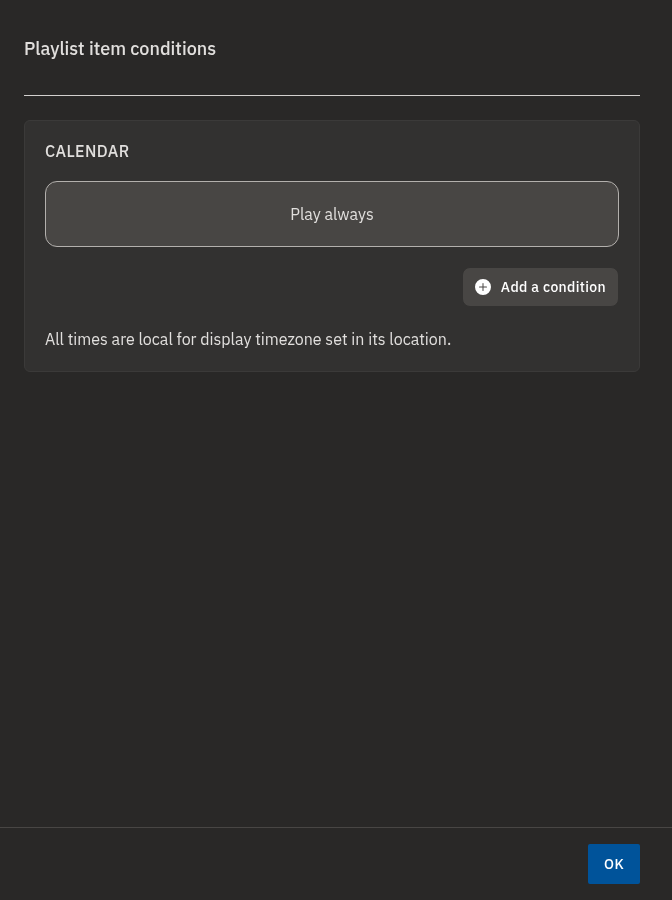
Info
Per-item conditions and the playlist's own Calendar conditions are independent. An item plays only when both its own conditions and the playlist's conditions allow it.
Enable or disable a playlist
Near the top of the playlist is an Enabled switch — a master on/off control.
- Open the playlist.
- Toggle Enabled on (plays) or off (doesn't play at all).
- Click Save changes.
Warning
A disabled playlist never plays, even if its Calendar conditions currently match. Enabled always overrides the schedule. This is the way to pause a playlist without deleting it; you can re-enable it later.
Set priority and re-rank all playlists
When more than one playlist targets the same displays at the same time, Priority decides what wins. Higher-priority content takes precedence, and lower-priority content fills the remaining time.
Each playlist shows a Priority number next to a Change priority button.
- Open any playlist; its current Priority number is shown beside Change priority.
- Click Change priority to open the Change playlist priority panel.
- The panel ranks all playlists in a single list, from highest priority at the top to lowest at the bottom.
- Drag playlists, or use the up/down arrows, to order them from highest (top) to lowest (bottom).
- Click Save priority list.
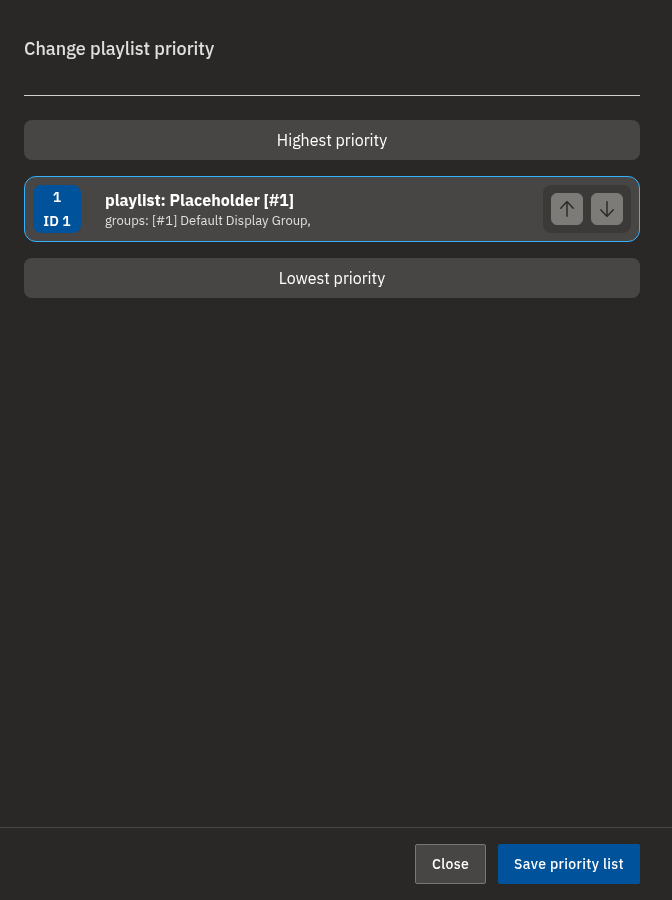
Info
Priority is global. The Change playlist priority tool re-ranks every playlist at once, so moving one playlist also shifts how it relates to all the others.
💡
Exactly how a display blends higher- and lower-priority playlists across its groups depends on its Playback Mode. See Playback Modes to understand how a screen combines its content.
FAQ
Why does my playlist say "Play always"? Because it has no Calendar conditions yet. A playlist with an empty Calendar plays whenever it is enabled and assigned to a display. Add conditions to restrict it to certain dates, times, or weekdays.
Are the scheduled times based on my time or the screen's time? The screen's. All Calendar conditions are evaluated in the display's own local time zone, which comes from the display's location — not your browser's time zone.
What happens when two playlists are scheduled on the same screen at the same time? Priority decides. The higher-priority playlist takes precedence and the lower-priority one fills the remaining time. Use Change priority to re-rank all playlists from highest to lowest.
Can I schedule just one image instead of the whole playlist? Yes. In the Playlist order list, open that item's conditions to get Playlist item conditions, and add date, time, or weekday rules there. Only that item is restricted; the rest of the playlist is unaffected.
How do I stop a playlist from playing without deleting it? Turn off its Enabled switch and save. A disabled playlist never plays, regardless of its schedule, and can be re-enabled later.
Need help?
If a playlist isn't appearing when you expect, check three things in order: that Enabled is on, that its Calendar conditions match the screen's local time, and where it sits in the Change playlist priority list. Still stuck? Reach out to our support team and we'll be glad to help.