Creating and Configuring Displays
In Bohemica Signage, a Display is the on-screen setup you build in the web dashboard. It holds the settings — the name, location, rotation, groups, and playback mode — that decide what plays on a screen and how it looks. This article walks you through creating a Display and configuring each of those settings.
Displays vs. Devices
A Display is not the same thing as the physical player box:
| Concept | What it is | Where you manage it |
|---|---|---|
| Display | The on-screen setup you create and configure in the dashboard. | The web dashboard |
| Device | The physical player plugged into your TV or monitor. | The hardware itself |
You create and set up the Display here. Linking it to a physical player is a separate step, covered in Pairing a Display with a Device.
Info
A new Display starts as Not activated — it won't play, and isn't counted for billing, until you activate it. Activation is a separate action from creating and configuring the Display.
Create a New Display
- Open the Displays page from the menu.
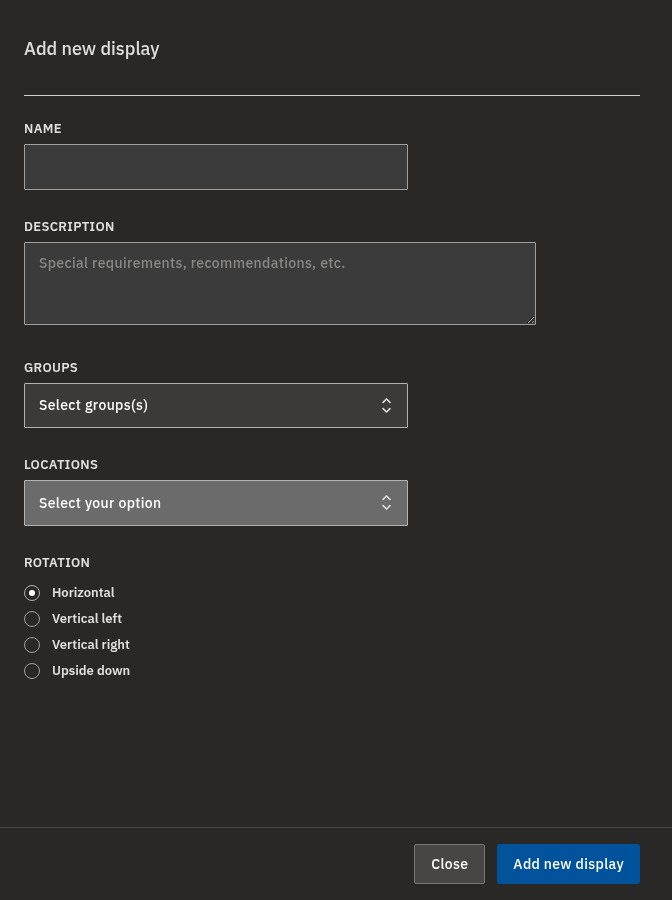
- Click Add new display (top-right). A side panel opens.
- Enter a Name (required).
- Optionally add a Description — a free-text field for notes, such as special requirements.
- Optionally assign one or more Groups using the Groups selector. You can search the list to find a group quickly.
- Select a Locations entry (required). This sets the Display's timezone and business hours.
- Choose a Rotation: Horizontal, Vertical left, Vertical right, or Upside down. New Displays default to Horizontal.
- Click Add new display in the panel to create it. You are taken straight to the new Display's detail page.
💡
You can also start creating a new Display from the Add new display button on another Display's detail page — no need to return to the Displays list first.
Warning
A location is mandatory — a Display can't be created or saved without one. If your account has only one location, it is preselected for you.
Edit a Display's Core Settings
Once a Display exists, you can adjust any of its settings from the detail page.
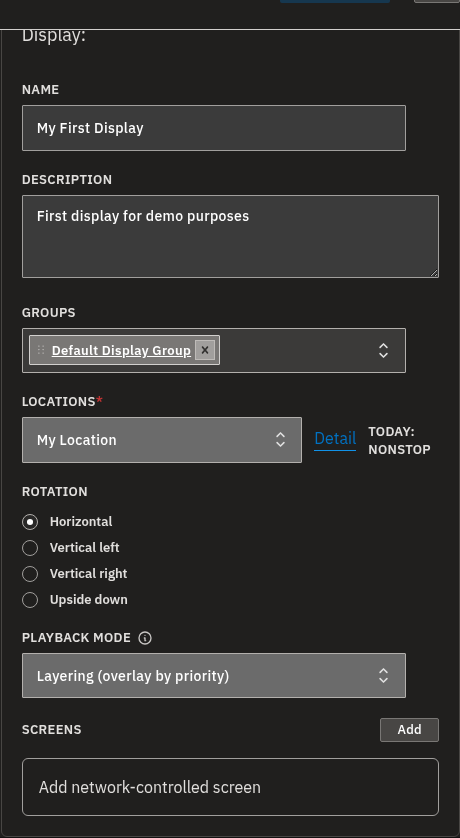
- Open the Displays page and click the Display to open its detail page.
- Edit the Name and/or Description fields.
- Add or remove Groups (the selector is searchable). If you use a Sequential playback mode, drag the groups into the order you want them to play (more on this under Choosing a Playback Mode below, and in Playback Modes).
- Change the Locations entry if needed (note today's opening hours shown beside it).
- Adjust the Rotation if the screen is mounted differently.
- Choose a Playback mode — Layering (overlay by priority), Sequential (play groups one after another), or Sequential, no repeats. See Playback Modes for how each behaves.
- Click Save changes to save.
Info
The save button activates once you've changed something; while you have unsaved edits, a second save button also appears that saves and takes you back to the Displays list in one step. There's no separate "generate" step — saving automatically rebuilds the Display's play schedule for you.
Warning
If you try to leave the page (or switch department) with unsaved edits, you're asked to confirm before they're discarded.
Assign a Location and Confirm Inherited Hours
The location does more than label where a Display lives — the Display follows that location's timezone and business hours, which control when content plays. Picking the right one matters.
- On the Display detail page, use the Locations dropdown to pick a location.
- Read the opening hours shown next to the dropdown to confirm you've chosen the right one.
- Use the Detail link beside the dropdown to open the location and review its timezone and business hours if you need to check.
- Click Save changes.
Warning
Changing the location changes the timezone and business hours the Display follows, which affects scheduling. Double-check before moving a Display to a different location.
Set the Rotation for a Mounted Screen
The Rotation field controls the screen's orientation. Match it to how the display is physically installed:
| Rotation | Use it when the screen is… |
|---|---|
| Horizontal | Mounted normally, in landscape (the default). |
| Vertical left / Vertical right | Mounted in portrait. Pick whichever option matches the way your screen is physically turned. |
| Upside down | Mounted inverted. |
- Open the Display detail page.
- Under Rotation, pick the option that matches the physical mount.
- Click Save changes.
💡 How soon do changes reach the screen?
Saved changes — rotation, resolution, the content a Display shows, and so on — reach the player over a real-time connection, so they normally apply almost instantly. If a playlist or schedule is complex, the player may need a few seconds to rebuild and download the updated schedule. On a device with a poor network connection it can take up to a minute — in rare cases, on a very weak connection, up to an hour. A delay like that points to a network problem at the screen's location worth looking into. In the vast majority of cases, changes are live within moments.
Choosing a Playback Mode
The Playback mode decides how the Display combines the content from its groups. There are three options:
| Mode | What it does |
|---|---|
| Layering (overlay by priority) | Overlays content by priority rather than playing groups in turn. This is the default. |
| Sequential (play groups one after another) | Plays each group's playlists back-to-back, in the group order set on the Display. |
| Sequential, no repeats | Like Sequential, but if a playlist appears in more than one group it only plays the first time and is skipped afterwards. |
For a deeper look at how these behave, see Playback Modes.
💡
Group order only matters for the Sequential modes — that's the order the groups play in. Under Layering, priority (not order) decides what shows. For help setting up groups, see Managing Display Groups.
Info
Until a Display is in a group with a playlist assigned, it has nothing scheduled to play. Add it to a group and assign a playlist, and content starts appearing.
FAQ
What is the difference between a Display and a Device?
A: A Display is the on-screen setup you create and configure in the dashboard — its name, location, rotation, groups, and playback mode. A Device is the physical player that shows it on a screen. You connect the two in a separate pairing step.
Why do I have to choose a Location for every display?
A: The location is required because the Display inherits that location's timezone and business hours, which control when content plays. Without a location, the Display can't be saved.
My screen is mounted sideways — how do I fix the orientation?
A: Open the Display, and under Rotation choose Vertical left or Vertical right to match how the screen is turned (or Upside down for an inverted mount), then click Save changes.
Does the order of groups on a display matter?
A: For the Sequential playback modes, yes — the Display plays each group's playlists in the order the groups are listed, and you can drag them to reorder. Under Layering, priority rather than order decides what plays.
Why can't I click the save button?
A: The save button only activates once you've actually modified a field — if you can't click it, you haven't actually changed anything (or your edit matches the saved value).
Why is everything greyed out and I can't edit the display?
A: You're browsing another department read-only — you can see this page but not change it. See Departments, Users & Roles.
Need help?
If a Display isn't behaving the way you expect, double-check its location, Groups, and Playback mode first — these decide what plays and when. For linking a Display to a physical player, see Pairing a Display with a Device. If you're still stuck, reach out to our support team and we'll be glad to help.