Monitoring and Operating Displays
Once your screens are set up, the Displays section is your day-to-day control panel. At a glance you can see which displays are online, open any one of them to activate or deactivate it, restart a misbehaving player, and find the device details our support team may ask for. This article walks you through all of it.
If you haven't linked a player to a Display yet, start with Pairing a Display with a Device.

The Displays list at a glance
Open Displays from the main menu. Your displays are organized into folders by Location, so each store, office, or site has its own group. Expand a location to see the displays inside it.
Each location folder carries an overall status badge so you can spot trouble without opening anything. It tells you whether every display in the location is reachable, whether some have stopped checking in (with a count of how many), or whether the whole location is offline. If some displays are offline, expand the folder and check their Status and Last active columns to find the affected players; if an entire location is offline, the site's network or power connection is the usual suspect.
Inside each location, every display row shows these columns:
| Column | Meaning |
|---|---|
| Name | The name you gave the display. |
| Location | Where the display lives. |
| Active | Whether the display is currently activated. |
| Groups | The groups the display belongs to. |
| Status | Pairing and reachability, in plain words (see below). |
| Local IP | The local IP of the paired device(s), if any are paired. |
| Last active | When the device last checked in. |
Reading the Status column
The Status column combines two things:
- Paired or Not paired — whether a physical player is linked to this display.
- Paired displays also show Online (checked in recently) or Unknown (no check-in for about a minute).
Info
Online and Unknown are based on when the player last checked in with the dashboard — in other words, whether it's reachable. They don't confirm that content is currently on screen. A reachable player will normally be playing its schedule, but the status itself only reflects the check-in.
Reading the Last active column
The Last active column shows when the device last checked in. A recent time means the device is checking in normally; an older date means it has been out of touch for a while and is worth a closer look.

Check the status of all your displays
- Open Displays from the main menu.
- Expand a Location folder to see the displays inside it.
- Read the location's status badge to see whether all, some, or none of its displays are reachable.
- For each display, read the Status column: Paired or Not paired, plus Online or Unknown for paired displays.
- Check the Last active column to see when each device last checked in.
Search for a display
- Open Displays.
- Use the table search to type part of a display's name or location.
- The list filters to matching displays. Click a row to open its detail page.
Download the displays list to Excel
- Open Displays.
- Click Download in Excel at the top of the page.
- A file named My Signage Displays.xlsx downloads, listing each display's name, location, active state, groups, status, local IP, and last active time.
Operating a single display
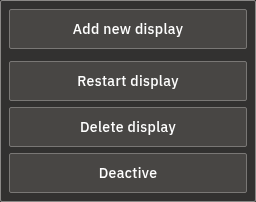
Click any display in the list to open its detail page. The actions you'll use most live in the header: Activate / Deactivate, Restart display, and Delete display. Device information sits in the Connected device(s) card further down.
Activate a display (may start billing)
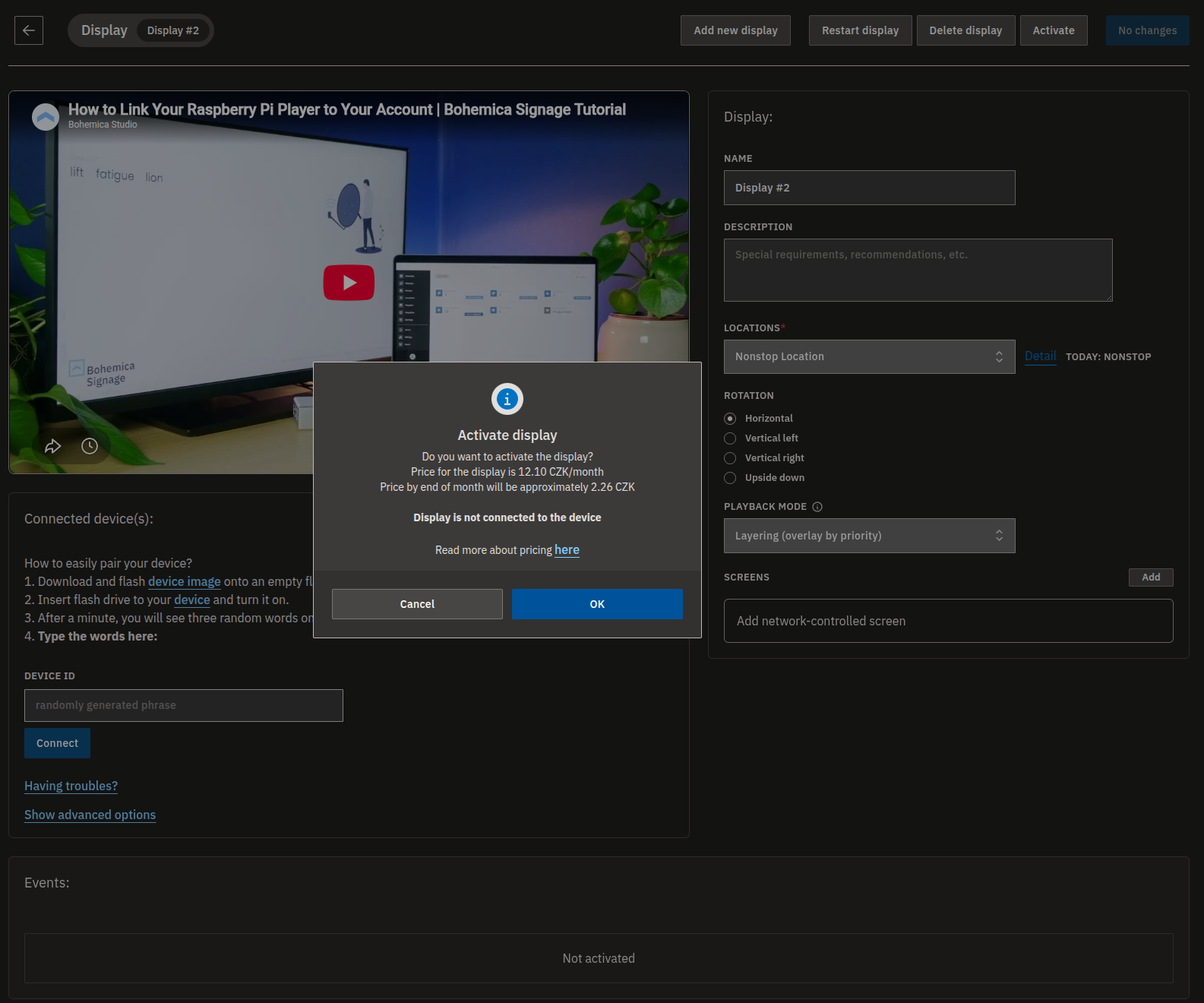
Activating a display turns it on and starts playing its scheduled content. Because active displays are what we bill for, you'll always see the price before you confirm.
- Open the display from the Displays list.
- Click Activate in the header.
- Review the charges before you confirm: the monthly price (including VAT) and an estimated charge for the rest of the current month. Your first display is normally free.
- Beyond your first display, billing data and card details are required — complete them if you haven't yet.
- Confirm. The display becomes active and starts playing its scheduled content.
Warning
Activating a display can add to your monthly bill. Your first active display is normally free, but each additional active display is charged, and adding more can move you into a higher price tier — you'll be warned before you confirm when that happens. The exact monthly price (incl. VAT) and an estimated charge for the rest of the month are always shown before you confirm. See Pricing for more.
Deactivate a display
- Open the display from the Displays list.
- Click Deactivate in the header.
- Confirm.
- The display stops playing and is removed from active billing.
Restart (reboot) the player remotely
If a screen looks frozen or out of sync, a remote restart is often the quickest fix.
- Open the display from the Displays list.
- Click Restart display in the header.
- Confirm.
- A reboot request is sent to the connected player.
Info
A restart only makes sense for a display whose device is connected and reachable. The reboot request reaches the player the next time it checks in, so a player that's currently Unknown may take a little longer to act on it.
Delete a display
- Open the display from the Displays list.
- Click Delete display in the header.
- Confirm.
- The display is deleted, along with its connected device(s) and their status history, and the device is unpaired from the server.
Warning
Deleting a display is permanent. It also removes the connected device(s) and their status history and unpairs the device. It does not undo billing that has already happened: charges the display accrued while it was active stay on your invoice — to stop a display from being billed going forward, deactivate it instead. If the device or one of its groups is shared with another department, the deletion may be blocked — in that case, remove the device or group from the other department first. See Departments, Users & Roles.
Find the connected device's details (for remote support)
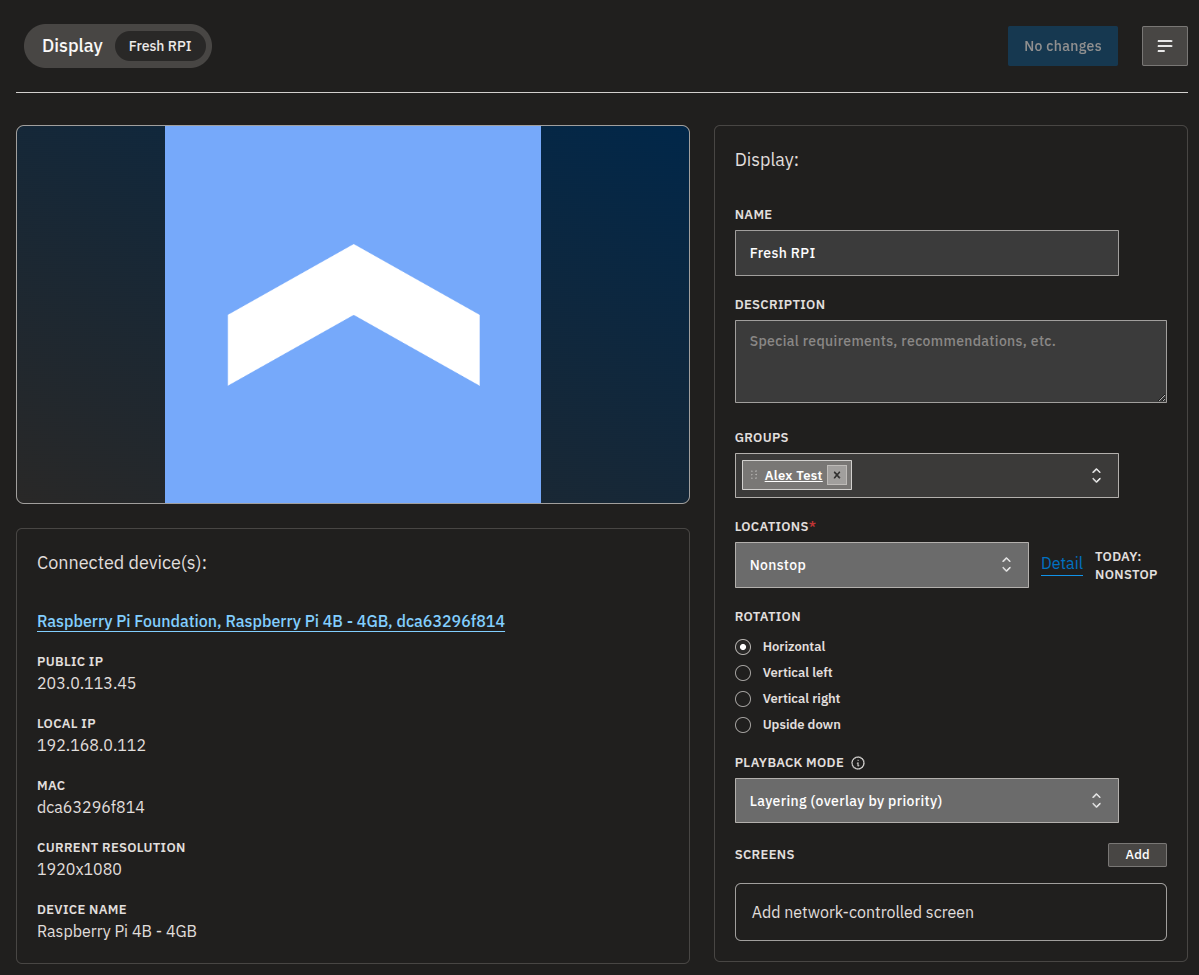
When you contact support, they may ask for the player's network details. You'll find everything on the display's detail page.
- Open the display from the Displays list.
- Find the Connected device(s) card.
- Read the device details: Public IP, Local IP, MAC, Current resolution, and Device name.
- Share the details our support team asks for, so they can identify the player and help you faster.
Info
These details only appear once a device is paired and has reported them. Right after pairing, it can take a short while for the IPs, MAC, and resolution to populate.
A note on read-only access
When you're browsing another department read-only, you can see every display, its status, and all its device details, but can't make changes on this page — switch back to a department you belong to when you need to change something. Roles are explained in Departments, Users & Roles.
FAQ
Will activating a display cost me money?
A: It can. The monthly price (including VAT) and an estimated charge for the rest of the current month are always shown before you confirm the activation. Your first active display is normally free; additional displays add to your monthly bill.
What does "Online" or "Unknown" mean next to a paired display?
A: It's based on when the player last checked in. Online means it checked in recently; Unknown means it hasn't checked in for about a minute. Location folders wait a little longer before counting a display as offline, so a row can show Unknown shortly before the folder count catches up. It doesn't tell you whether content is currently playing.
How do I restart a player that is misbehaving?
A: Open the display, click Restart display, and confirm. A reboot request is sent to the connected player and it restarts remotely.
What happens when I delete a display?
A: The display is removed, and so are its connected device(s) and their status history; the device is unpaired from the server. Charges the display accrued while it was active are not reversed — they still appear on your invoice. If the device or a group is shared with another department, the deletion may be blocked.
Where do I find the device's IP address or MAC?
A: Open the display and look at the Connected device(s) card. It shows Public IP, Local IP, MAC, Current resolution, and Device name.
Why are my action buttons greyed out?
A: You're most likely browsing another department read-only, which lets you see this page but not change it — switch back to a department you belong to, or see Departments, Users & Roles.
Need help?
Still stuck? Our support team is happy to help — reach out and we'll get your displays back on screen. Having the device details from the Connected device(s) card ready speeds things up.