The Media Library
The Media Library (the Playables section) is where all of your content lives. Before a piece of content can go into a playlist, it has to exist here first. This article covers the kinds of content you can add, how to upload it, what video conversion does, and how to keep everything organized.
Types of content
A single piece of content is called a playable. There are four types:
| Type | What it's for |
|---|---|
| Image | A still picture shown for a duration you set. |
| Video | A video clip. Videos can be automatically converted to fit your screens (see Video conversion below). |
| Audio | A sound file, useful for in-store audio — and the building block of audio-only playlists. |
| URL | A web page displayed from its URL. Great for live dashboards, menus, or announcements. |
💡
Not sure what resolution or format your images and videos should be? See Optimal formats for recommended sizes and aspect ratios.
Uploading content
- Go to the Playables tab.
- (Optional) Open the folder you want to upload into first, so the new files land in the right place.
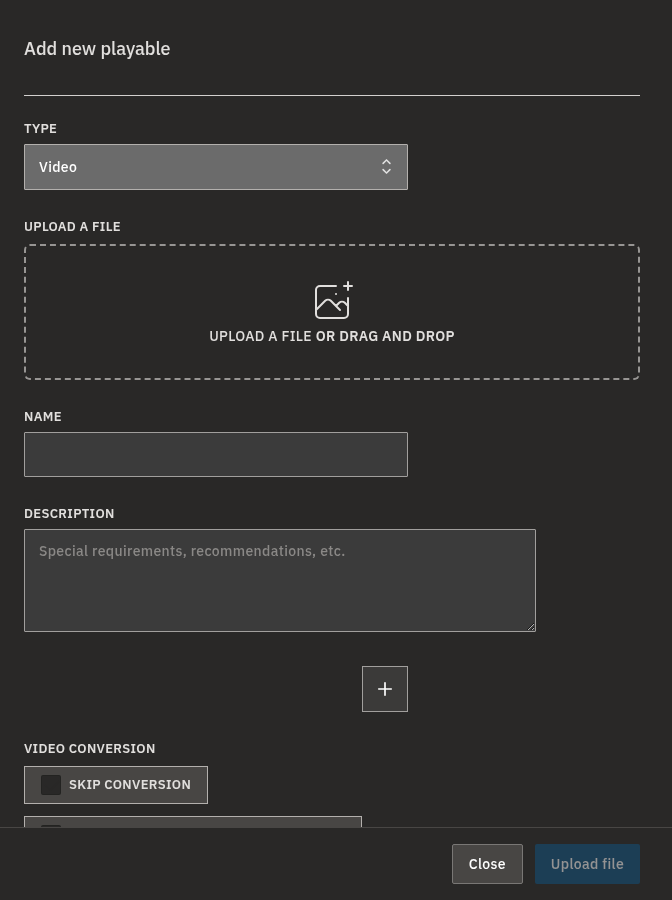
- Click Add playable and choose the type, or use Upload a file.
- Either pick a file from your computer, or drag and drop it onto the upload area.
- Give the playable a Name (and an optional Description), then save.
💡
Have lots of files to add at once? Use Bulk upload to select many files in one go.
Warning
Individual files can be up to 4 GB. If a file is larger than that, the upload is refused — try exporting it at a lower bitrate, or splitting it into shorter clips.
Video conversion
When you upload a video, Bohemica Signage can convert it into a version that's ready for your screens. The file you upload is always kept, and conversion prepares:
- FullHD — a 1080p version. This is the version your screens play.
- 4K — a 2160p version, created only when the video you upload is 4K or larger. It's available from the playable's page.
You don't have to do anything for this to happen — it runs in the background after upload.
Info
While conversion is still running, the video can't be played yet — wait a few moments and try again. Once it finishes, the converted version is ready and your screens play it automatically.
- Notify me by email when ready to use — turn this on if you'd rather be emailed when a long conversion finishes instead of waiting on the page.
- Skip conversion — turn this on when your video is already sized for your screens, or you specifically want the file played exactly as uploaded. Nothing is re-encoded: the file you uploaded is exactly what your screens play.
Web page playables
For a URL playable, paste the web page link and the player will display that page on screen. Bohemica Signage automatically captures a picture of the page to use as its thumbnail in the library, so you can recognize it at a glance.
💡
The page is loaded live each time it plays, so a dashboard, menu, or announcement page that updates itself stays current on screen. Keep in mind the page isn't interactive on screen — anything that needs clicking, scrolling, or signing in won't work — and the page has to be reachable from the network the player is on. The picture in the library is just a thumbnail captured when you saved the URL, not what plays.
Organizing with folders
As your library grows, folders keep it manageable.
- In the Playables tab, create a folder and give it a name.
- Drag content into it, or upload directly into it.
- Folders can be nested, so you can group by store, campaign, season, or however you work.
To find something quickly, use the type filter (All, Images, Videos, Sounds, Web pages) and the Search box at the top of the library.
Storage and the free tier
A small storage indicator shows how much space you're using.
Info
If your account is on the free tier — which currently applies when you're using fewer than two active displays — your media storage is limited to 1 GB. To store more, free up space by deleting unused files, or upgrade to the paid version by activating more displays — see billing. Accounts on a custom plan invoiced outside the dashboard aren't subject to this limit.
Deleting content
You can delete a playable from the library at any time — unless it's still being used.
Warning
Deleting a playable from its detail page is blocked while any playlist uses it — you'll be shown which playlists, so you can remove it from them first. Bulk-deleting from the library list only checks enabled playlists: an item used only by disabled playlists is deleted and silently removed from them, so make sure no disabled playlist still needs it before you bulk-delete.
FAQ
What types of content can I show on my screens?
A: Four types: images, videos, audio, and web pages (added by URL). Each one is added to the Media Library first, then placed into a playlist.
Do I need to resize my videos before uploading?
A: Usually not. After upload, Bohemica Signage prepares a FullHD version for your screens — plus a 4K version if the file you upload is already 4K or larger. If your file is already sized correctly, you can turn on Skip conversion to have it played exactly as uploaded.
My video isn't playing yet and says it's still being converted.
A: Conversion runs in the background and can take a little while for large files. Wait a few moments and try again — or turn on Notify me by email when ready to use so you don't have to keep checking.
Why can't I delete a file?
A: A playable can't be deleted from its page while it's still used in a playlist. You'll be shown which playlists it belongs to — remove it from those first, then delete it. (Bulk-deleting from the list is only blocked by playlists that are switched on.)
Why am I running out of storage?
A: Free-tier accounts (currently, those using fewer than two active displays) are limited to 1 GB of media storage. Delete content you no longer need, or activate more displays to move to the full version. Custom-plan accounts invoiced outside the dashboard have no storage cap.
Need help?
Stuck adding or converting content? Contact our support team and we'll be glad to help.