Signing In
Welcome back! This article walks you through signing in to your Bohemica Signage dashboard, whether you use an email and password or a Google or Microsoft account. It also covers entering a two-factor code, choosing a server, and getting back in if you've forgotten your password.
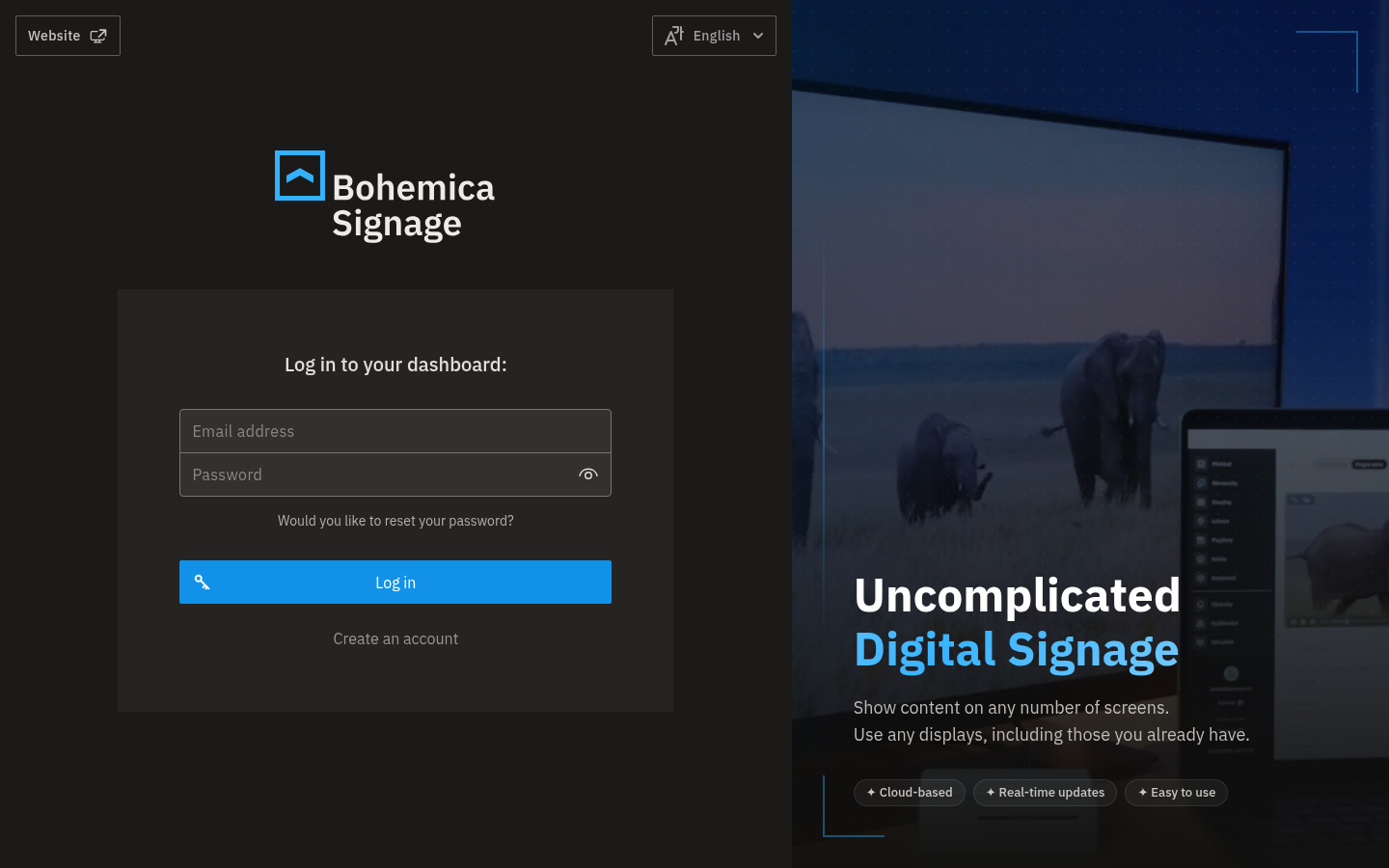
Your dashboard lives at app.bsgn.cc. Open that address in your browser and you'll land on the sign-in screen.
💡 New here?
If you don't have an account yet, click Create an account below the form to get started. If a teammate invited you by email, see Just joined the team? below.
Sign in with email and password
- Go to your Bohemica Signage dashboard at app.bsgn.cc.
- In the Email address field, type your email address.
- In the Password field, type your password.
- Click Log in.
- If your account can use more than one server, click the server you want to open. (See Choose a server at sign-in below.)
If your email or password doesn't match, the dashboard tells you so. Double-check both fields and try again, or reset your password if you're unsure.
Sign in with Google or Microsoft (SSO)
If single sign-on is enabled for your organization, you'll see Sign in with Google and Sign in with Microsoft buttons above the email form on the sign-in screen.
- On the sign-in screen, click Sign in with Google or Sign in with Microsoft.
- Complete sign-in in the Google or Microsoft window if you're prompted.
- Wait a moment while the dashboard finishes signing you in.
- If your account can access more than one server, choose the one you want.
An SSO account has no separate password
When you sign in with Google or Microsoft, you authenticate through that provider and there's no separate Bohemica Signage password to remember. Always come back through the same Sign in with Google or Sign in with Microsoft button — the password reset steps below don't apply to SSO accounts.
Don't see the SSO buttons?
If you don't see Sign in with Google or Sign in with Microsoft, single sign-on isn't available for your account — just sign in with your email and password instead.
If something goes wrong on the provider's side, you'll be returned to the sign-in screen with an authentication error. Simply start the SSO sign-in again.
Enter a two-factor code at sign-in
If two-factor authentication is turned on for your account, there's one extra step after your password is accepted.
- Sign in with your email and password as usual.
- When the Two-Factor Authentication screen appears, get your code — from your authenticator app or from the text message we sent, depending on how two-factor was set up for your account (see Two-Factor Authentication for the details).
- Type the 6-digit code into the Verification code field.
- Click Verify.
💡 No SMS code arrived?
For text-message codes, wait for the short cooldown to finish, then click Resend SMS code.
If your code isn't accepted, re-enter the current code, or click Go back to return to the password screen and start over. To set up, change, or recover two-factor verification, see Two-Factor Authentication.
Choose a server at sign-in
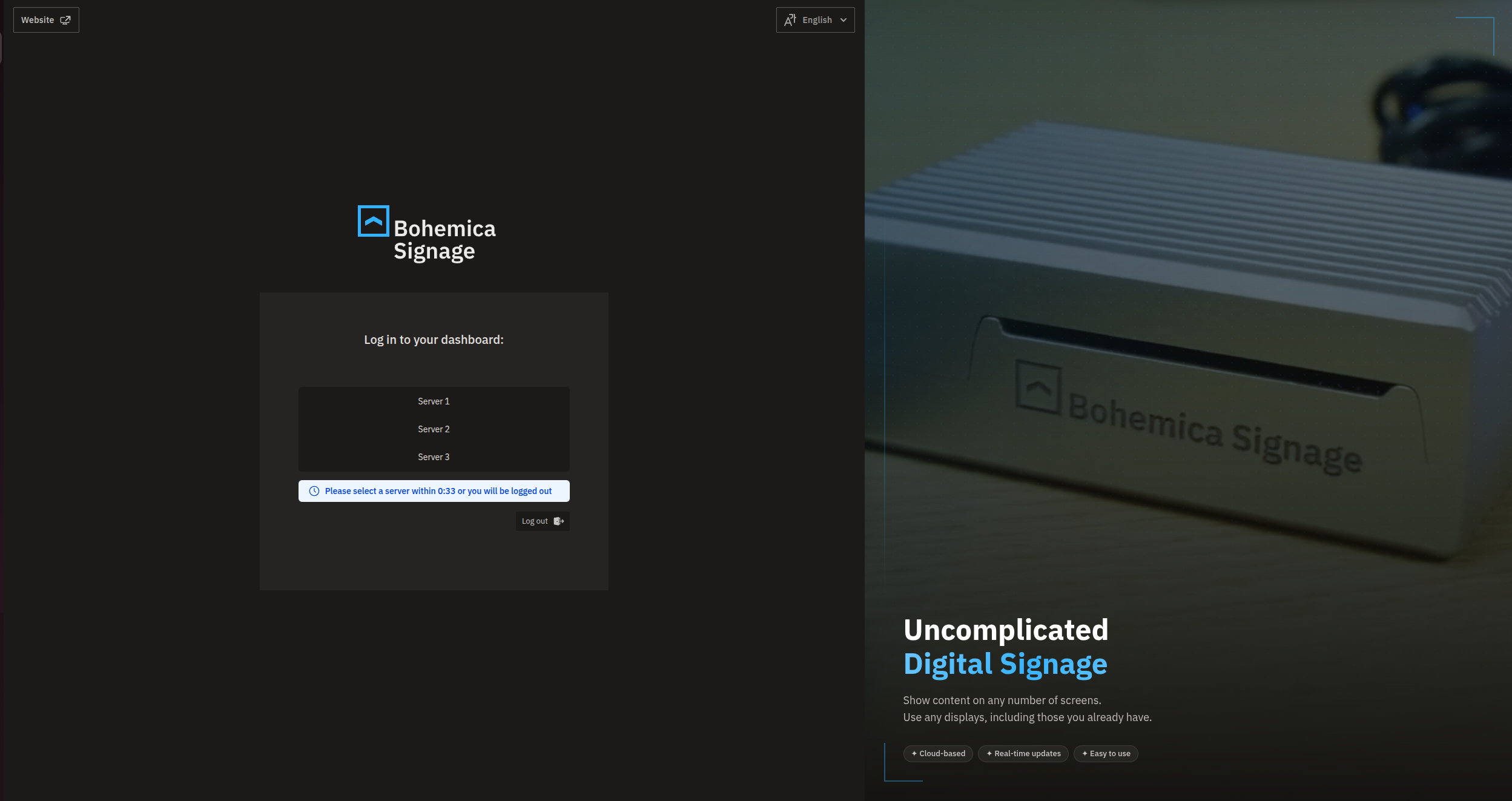
A server is a separate Bohemica Signage environment. Some accounts have access to more than one.
- Sign in with your email and password or with SSO.
- If your account belongs to more than one environment, a list of servers appears as buttons.
- Click the server you want to work in.
- To sign out instead of choosing, click Log out.
Only one server? You'll skip this step.
If your account has access to a single server, the dashboard takes you straight in. If your account has no server to sign in to, sign-in can't continue — contact your administrator or our support team if you expected access.
Don't wait too long
Finish choosing a server (and completing two-factor verification) within a few minutes. If you wait too long you'll be signed out and asked to start again.
Reset a forgotten password
This applies to email-and-password accounts only
If you sign in with Google or Microsoft, you don't have a Bohemica Signage password to reset — just use the SSO button instead.
- On the sign-in screen, click Would you like to reset your password?.
- Enter the email address for your account.
- Click Reset password.
- We'll email you a link for creating a new password. Open that email and click the link.
- On the page that opens, type a new password in the Password field and the same one in Confirm password.
- Click Confirm.
- Once your new password is saved, sign in with it as usual.
Reset email not arriving?
If the address you entered isn't tied to any environment, no reset email is sent. Try the exact email your account uses, or check with whoever set up your account.
Your new password must be at least 8 characters long, and you need to type the same password in both fields — the form won't accept a blank or mismatched entry.
Handle an invalid or expired link
Password-reset and invitation links expire and can only be used once. If a link is no longer usable, you'll land on a page telling you the link is invalid and offering to send a fresh one.
- On that page, click the Reset password link to request a fresh reset email.
- Use the new link right away, before it expires.
Common sign-in messages
| Message | What it means | What to do |
|---|---|---|
| Incorrect email or password. | The email or password didn't match. | Re-check both fields and try again, or reset your password. |
| Too many attempts, try again in X seconds | Sign-in is temporarily locked after several failed tries. | Wait the number of seconds shown, then try again. |
| Invalid verification code | The two-factor code was wrong. | Re-enter the current code, or click Go back. |
| Invalid token. | A reset or invitation link expired or was already used. | Request a fresh email from that page. |
| Failed to sign in via external provider | Google or Microsoft sign-in didn't complete. | Try the SSO button again. |
Just joined the team?
If you were invited by email, you'll set things up the first time you open the link. You can set a password or link your Google or Microsoft account, and you'll be signed in.
Already have a Bohemica Signage account?
If the email already belongs to a Bohemica Signage account, all you have to do is confirm the invitation — there's nothing new to set up. Next time you log in, just use your existing login details.
FAQ
What's the difference between signing in with a password and signing in with Google or Microsoft? If you signed up (or were invited) with an email and password, you type those on the sign-in screen. If you use single sign-on, you click Sign in with Google or Sign in with Microsoft and authenticate through that provider instead. An SSO account has no separate Bohemica Signage password, so you always sign in through the same provider button.
I forgot my password. How do I reset it? On the sign-in screen click Would you like to reset your password?, enter your email, and click Reset password. Open the email we send and click the link, then enter a new password (at least 8 characters) twice and click Confirm. You'll then be able to log in with the new password.
Why does it say "Too many attempts, try again in X seconds"? For security, sign-in is temporarily locked after several failed attempts. Wait the number of seconds shown, then try again. Double-check your email and password, or reset your password if you're unsure. The same temporary lockout applies after repeated wrong two-factor codes.
The dashboard is asking me to choose a server. What is that? A server is a separate Bohemica Signage environment. If your account has access to more than one, you'll see a short list after signing in — just click the one you want to work in. If you only have one, you'll skip this step.
My reset or invitation link says "Invalid token." What now? The link has expired or was already used. On that page, click Reset password to have a new email sent, then use the fresh link right away.
How do I enter my two-factor code when signing in? After your password is accepted, the Two-Factor Authentication screen appears. Enter the 6-digit code from your authenticator app or the SMS we sent, then click Verify. For SMS you can use Resend SMS code after a short wait. See Two-Factor Authentication for more.
Need help?
Still stuck signing in? Take a look at these related articles, or reach out to our support team: