Device Details and Telemetry
Every physical player in your Bohemica Signage setup quietly reports what it sees about itself — its hardware, its network addresses, which screens it can drive, and whether it's online. The device detail page gathers all of that in one place so you can check on a player's health without leaving your desk. This article explains how to open it, what each value means, and how to reboot the player — or delete it when it's time to retire or re-pair the hardware.
The detail page lives on the Devices page, which is separate from a Display's detail page. A Display is the on-screen setup you create in the dashboard; a Device is the physical player box. If those terms are new to you, start with Pairing a Display with a Device.
Info
Everything on this page is reported by the player itself — you don't type any of it in. If a value looks blank or out of date, it usually means the player hasn't reported it yet, not that you did something wrong.
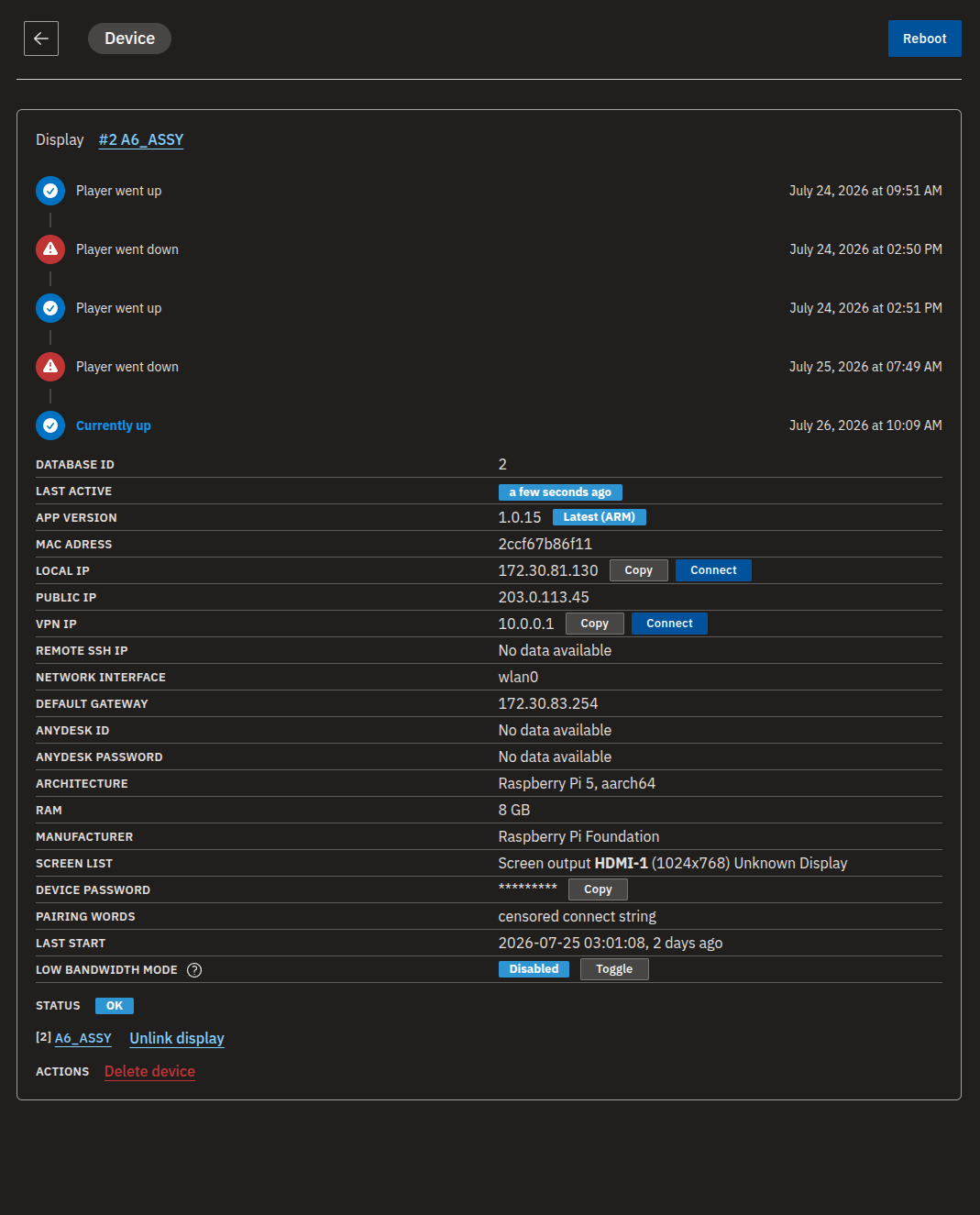
Open a device's detail page
- Open the Devices page from the main menu.
- Select the device (physical player) you want to inspect.
- The detail page opens and begins refreshing its information automatically while you keep the page open.
💡
You don't need to refresh the page yourself. While the detail page is open and the browser tab is in focus, it pulls fresh information about every ten seconds, so the page stays current on its own. Players themselves report in about once a minute, so some values change less often than the page refreshes. If you switch to another tab the updates pause, and they resume the moment you come back.
Check a player's hardware and network information
The top of the page reports who and where the player is.
- Open the device detail page.
- Review the reported fields:
| Field | Meaning |
|---|---|
| MAC adress | The player's hardware network address. |
| Local IP | The player's address on your local network. |
| Public IP | The address your network presents to the internet. |
| Network interface | The connection the player is using on your network. |
| Default gateway | The router or gateway the player sends traffic through. |
| Architecture | The player's CPU and hardware type. |
| RAM | How much memory the hardware exposes, shown in gigabytes (GB), rounded. |
| Manufacturer | The hardware maker the player reports. |
| App version | Which version of the player software is running. |
- Check Last start to see when the player last booted, and Last active to see when it last checked in.
- Leave the page open and the values refresh on their own as the player reports in.
Info
RAM is rounded to approximate gigabytes and reflects what the hardware exposes to the player, so treat it as a rough indication rather than a precise spec-sheet figure.
Reading Last start and Last active
- Last start shows the date and time the player last booted. If the player hasn't reported it yet, no date is shown.
- Last active shows when the player last checked in. If the last check-in is old, the player may be slow to respond or offline — see Read the overall status.
App version and updates
Next to App version, the page also tells you whether the player is up to date. When a newer version of the player software is ready, the player installs it the next time it reboots — so the version only changes after a restart, not instantly. Players restart themselves automatically overnight, so a pending update normally installs on its own by the next morning; to install it right away, reboot the player.
See which screens a player can drive
A single player can have more than one video output, which is how one device can run several Displays at once.
- Open the device detail page.
- Find the Screen list field.
- Read each line. Every output is listed on its own line with its output number, resolution, and connector label such as HDMI.
- Use these outputs when configuring or pairing multiple Displays to one device. See Creating and Configuring Displays and Pairing a Display with a Device.
Each Display linked to this device is also listed by name, and when a Display is assigned to a specific output, you'll see which output it uses. An Unlink display action lets you detach a Display from this device when you need to move it to different hardware. Unlinking removes only the link — it deletes neither the device nor the Display; they simply stop being connected. See Pairing a Display with a Device for how linking and unlinking works.
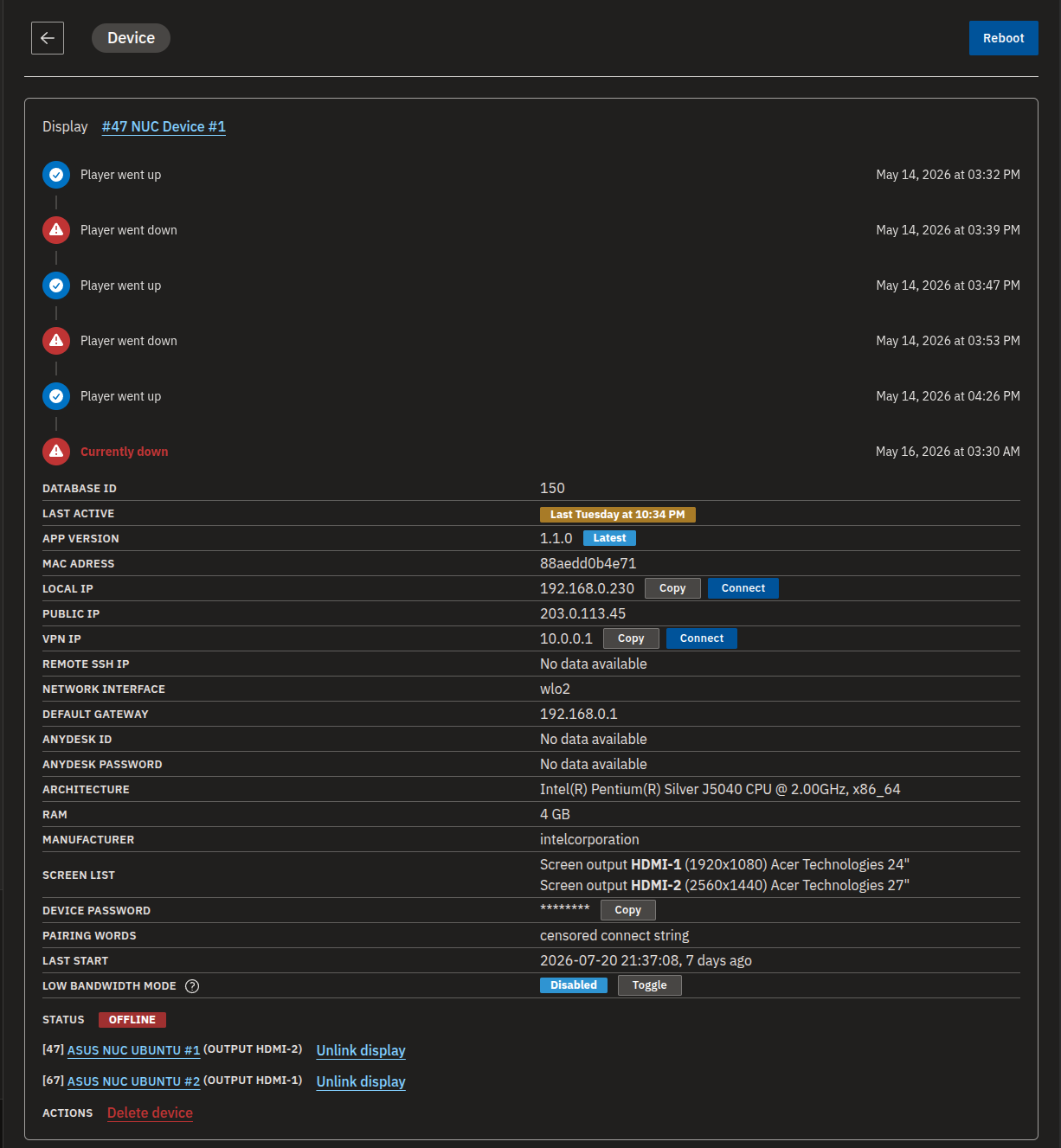
Read the overall status
The player's overall Status appears near the top of the page:
| Status | What it means |
|---|---|
| OK | The player is reporting normally. |
| OFFLINE | The player hasn't checked in recently. |
| Rebooting | A reboot is currently in progress. |
Info
OFFLINE simply means the player hasn't checked in lately — it doesn't necessarily mean the hardware is broken. It's most often a network or power issue. Once the player reconnects, the status returns to OK.
Review when a player went up or down
Further down the page, a status history timeline records every time the player came online or dropped offline.
- Open the device detail page.
- Scroll to the status history timeline.
- Read it from top to bottom — the newest entry sits at the bottom. Each entry records the date and time the player came online or dropped offline.
- The most recent entry reflects whether the player is currently up or down.
- By default the timeline shows only the most recent entries. If there are more than 10 events, click Show all to see the full history.
Turn Low bandwidth mode on or off
Low bandwidth mode lets a player on a slow or metered connection use less data, at the cost of picking up changes more slowly.
- Open the device detail page.
- Find the Low bandwidth mode row, which shows whether the mode is currently on for this player.
- Click Toggle to switch it on or off.
Warning
When Low bandwidth mode is enabled, the player communicates with the server less often to save data. The trade-off is that changes — such as updated display settings or new playlists — may appear on screen more slowly. This is expected; leave it off unless the player is on a constrained internet connection.
Reboot the player
A Reboot button at the top of the page restarts the player remotely — handy if a screen looks frozen or out of sync, and also the way a pending update gets installed.
- Open the device detail page.
- Click Reboot at the top of the page.
- Confirm when asked.
- Wait for the reboot to complete — it may take a few minutes.
💡
You can also restart a player from its Display's detail page. See Monitoring and Operating Displays.
Delete a device to free it for re-pairing
Deleting a device removes it from your dashboard and releases the physical player so it can be paired again — use it when you're retiring hardware for good or starting a pairing over. If you're moving a Display to different hardware rather than removing the player, use Unlink display instead.
- Open the device detail page.
- Click Delete device and confirm.
- Once deleted, the player is free to pair again — see Pairing a Display with a Device.
Warning
Deleting a device also deletes its status history and disconnects it from every Display it was driving. This can't be undone, so only delete a device you really mean to remove or re-pair.
Info
A device can't be deleted while it's driving Displays that belong to a different department — the deletion is blocked in that case. Unlink or move those Displays first, then delete the device. See Departments, Users & Roles.
A note on IT and support controls
Some controls on this page are meant for your IT team or Bohemica support rather than everyday admins. The Copy and Connect buttons next to certain network addresses, and any SSH-related access, exist so technical staff can connect to a player when they need to troubleshoot it.
Warning
Device access credentials and any exported device information are sensitive. Share them only with your own IT team or Bohemica support, and don't pass them around more widely. As a non-technical admin you normally won't need these controls at all.
FAQ
Does the device page update on its own, or do I need to refresh?
A: It updates on its own. While the detail page is open and the tab is focused, it automatically pulls fresh information about every ten seconds. If you switch tabs it pauses, and resumes when you return.
What is Low bandwidth mode and when should I turn it on?
A: When enabled, the player reduces how often it talks to the server to save data, which helps on slow or metered internet connections. The trade-off is that changes such as updated display settings or playlists appear on screen more slowly. Leave it off unless the player is on a constrained connection.
Why does a device show OFFLINE?
A: OFFLINE means the player hasn't checked in with the server recently. This is usually a network or power issue rather than broken hardware. Once it reconnects, the status returns to OK and the timeline records the moment it came back online.
What is the Screen list?
A: It lists each video output the player detected, with its number, resolution, and label. These outputs are what let one player drive multiple Displays; you choose which output a Display uses when configuring or pairing it.
Why does the device say "No data available" for some fields?
A: The player hasn't reported that information yet. This is common right after pairing, while the player is offline, or when the hardware doesn't provide that detail.
The page says "Update available" — how do I install it?
A: Reboot the player. Click Reboot at the top of the page and confirm; the update installs as the player restarts, and the App version shown on the page updates once the player is back up. Left alone, the player installs the update during its automatic nightly restart anyway.
What's the difference between unlinking a Display and deleting the device?
A: Unlinking detaches one Display while keeping both the device and the Display. Deleting removes the device entirely, erases its status history, and disconnects every Display it was driving — but it frees the player to be paired again.
Why can't I delete a device?
A: If the device is still driving Displays that belong to a different department, deletion is blocked. Unlink or move those Displays first, then try again.
Need help?
Still stuck, or seeing something on the device page you don't recognize? Our support team is happy to help — reach out and we'll take a look. If the fix needs remote access, your IT team or our support may ask for the device's network details from this page.