Pairing a Display with a Device
In Bohemica Signage, a Display and a Device are two different things, and your content only starts playing once you link them together. This article explains the difference and walks you through pairing, step by step.
Displays vs. Devices
Before you pair anything, it helps to know what you are connecting:
| Concept | What it is | Where you manage it |
|---|---|---|
| Display | The on-screen setup you create in the dashboard: its name, location, rotation, and content schedule. | The web dashboard |
| Device | The physical player box plugged into your TV or monitor. | The hardware itself |
Pairing links a Device to a Display. Until that link exists, the player has nothing to show, and the Display has no hardware to play on.
Info
One physical Device can have more than one video output, which means a single player can drive several Displays at once. More on that below.
Before You Start
A new player updates itself on first boot
The very first time a new player starts, it usually updates itself to the latest version before it's ready to pair. Depending on your connection this can take anywhere from one to several minutes, and a working internet connection is required — without it the player can't update, reach the dashboard, or pair. If the screen seems to sit on a loading or update step for a little while after first boot, that's normal; give it a few minutes.
- Set up the physical player and connect it to your screen. (See Setting up the player.)
- Turn the player on and wait a minute or so (timing varies by hardware) until three random words appear on the screen, usually alongside a QR code.
Those three words are your connect code. They're what links this player to a Display. You can pair in two ways: by typing the words into the dashboard, or by scanning the QR code.
💡
Not sure how to get the player ready? The Connected device(s) card in the dashboard includes its own quick pairing walkthrough, and Setting up the player covers preparing the player image in detail.
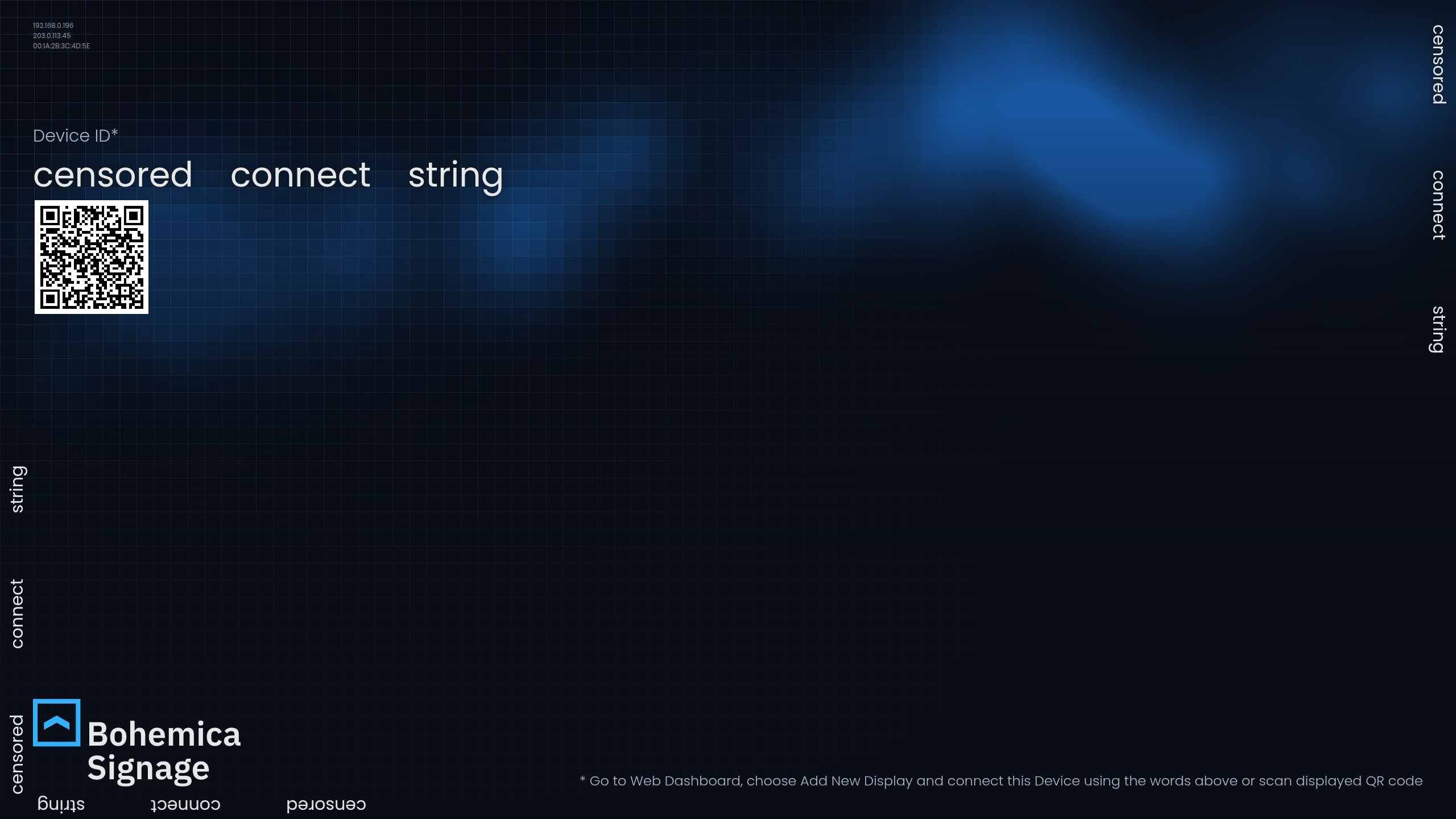
Option 1: Pair by Typing the Three Words
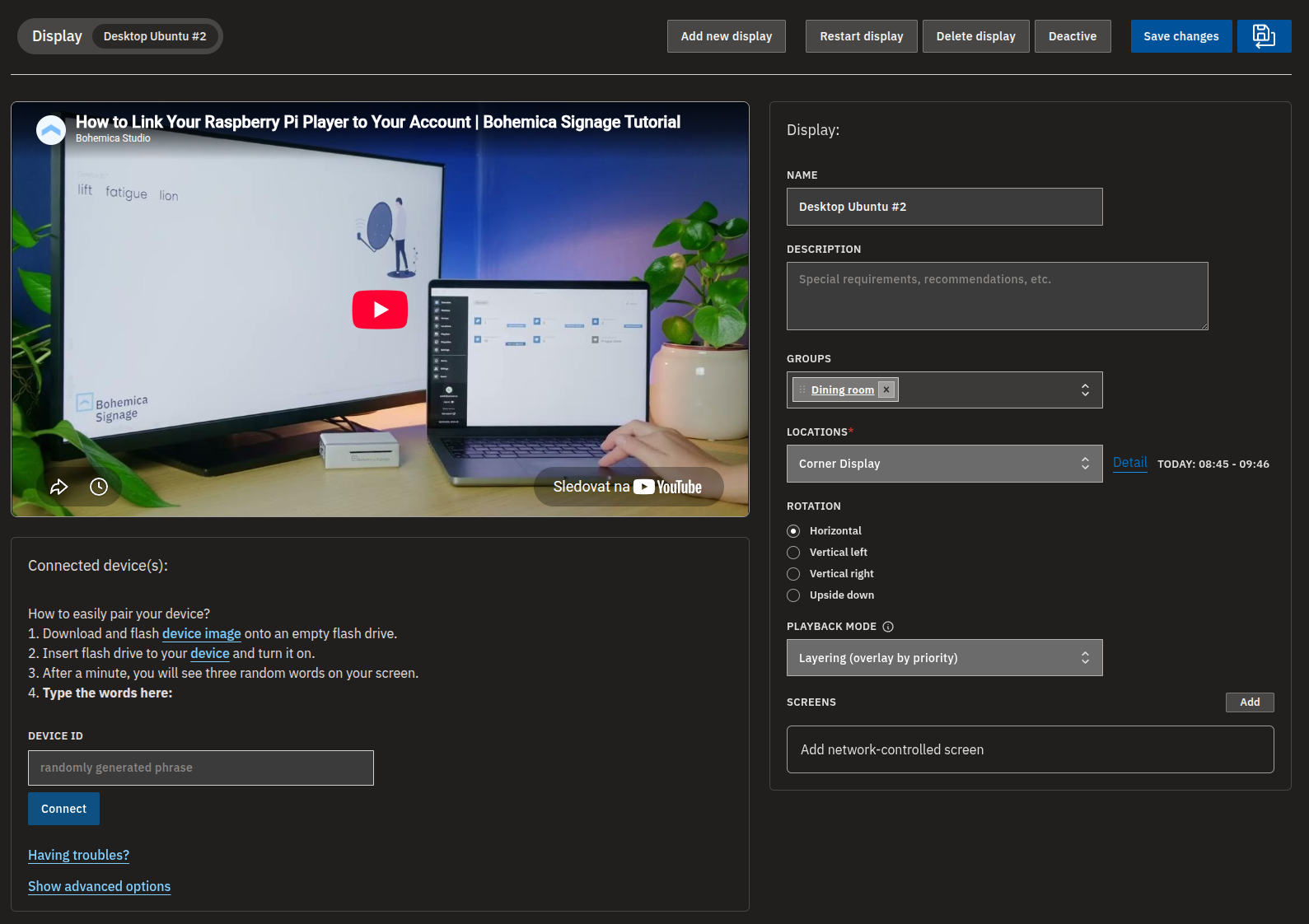
- In the dashboard, open the Display you want to use. If you don't have one yet, create one first (Add new display) and then open it.
- Find the Connected device(s) card.
- In the Device ID field, type the three words exactly as they appear on the player screen.
- Click Connect.
- Wait a moment for the pairing to complete.
Warning
The connect code must be exactly three words — double-check for typos and missing words before you connect.
If the device has more than one video output, you'll next be asked which one to use — see Choosing a Video Output. If the Display isn't active yet, you'll also be prompted to activate it — see After Pairing.
Option 2: Pair by Scanning the QR Code
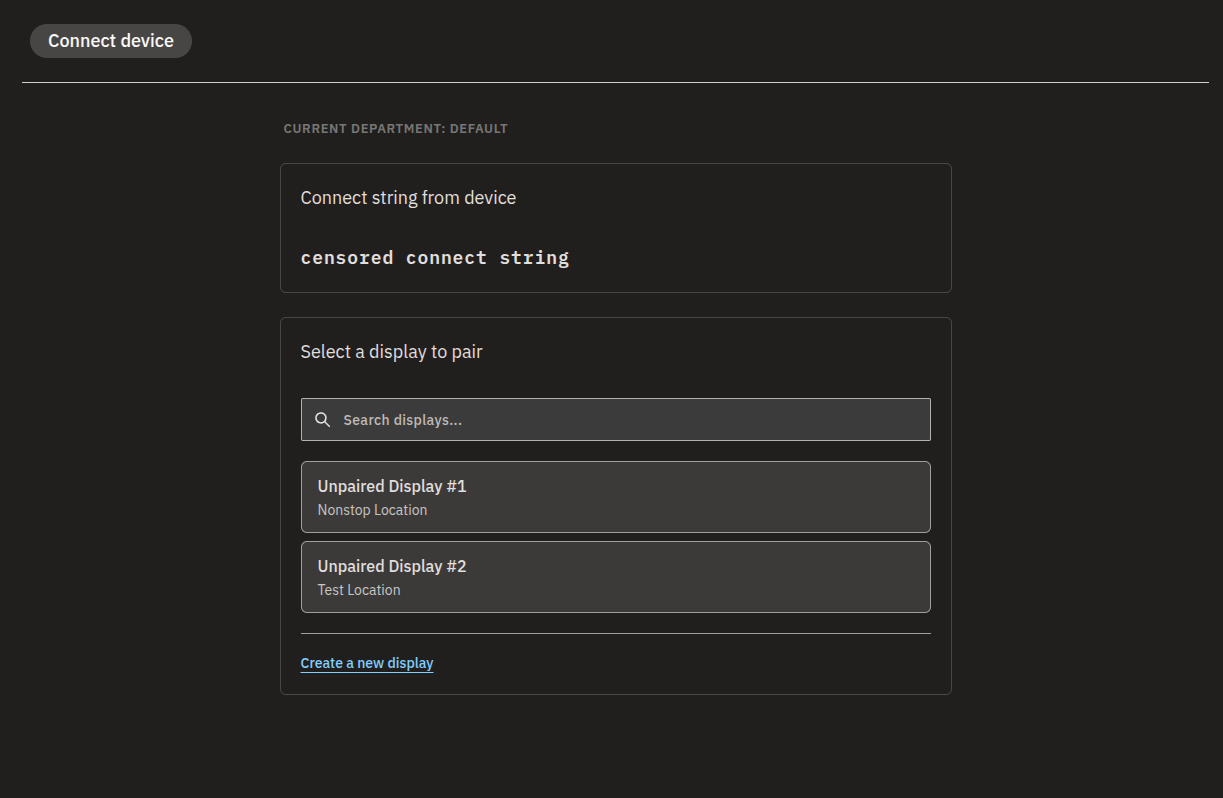
- On the player screen, scan the QR code shown next to the three words with your phone. This opens the Connect device page in the dashboard with the connect code already filled in.
- If your organization uses departments, confirm you are in the correct one.
- Use Search displays... to find the Display you want, then select it from the list. Alternatively, expand Create a new display to make one on the spot.
- Click Connect to this display (or Create and connect if you just created a new one).
- Once the pairing completes, you are taken to the Display's detail page.
💡
Only Displays that aren't already paired appear in this list. If you don't see the one you expect, it may already be linked to another device — and if no unpaired Displays are left, just create a new one instead.
Choosing a Video Output (Multi-Output Devices)
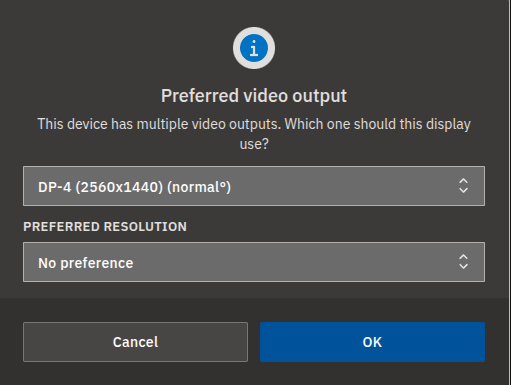
When the device you just paired reports more than one video output, the dashboard asks which output this Display should use:
- Open the dropdown and select the output this Display should play on.
- Optionally set a Preferred resolution for that output. Leave it on No preference to let the player decide.
- Confirm to save.
You can change the output later from the Preferred video output field on the Display detail form.
Info
Single-output devices skip this step entirely and go straight to activation.
Which resolution should I choose?
As a rule of thumb, run a Raspberry Pi at Full HD (1080p) and reserve 4K for a more powerful player such as an Intel/ASUS NUC. A Pi can struggle with smooth 4K video, though 4K still images or low-frame-rate content are usually fine. Leaving the resolution on No preference lets the player pick a safe default. See Officially supported Players for what each player handles.
Warning
Only some players support setting a preferred resolution — players that don't will simply use their own default resolution.
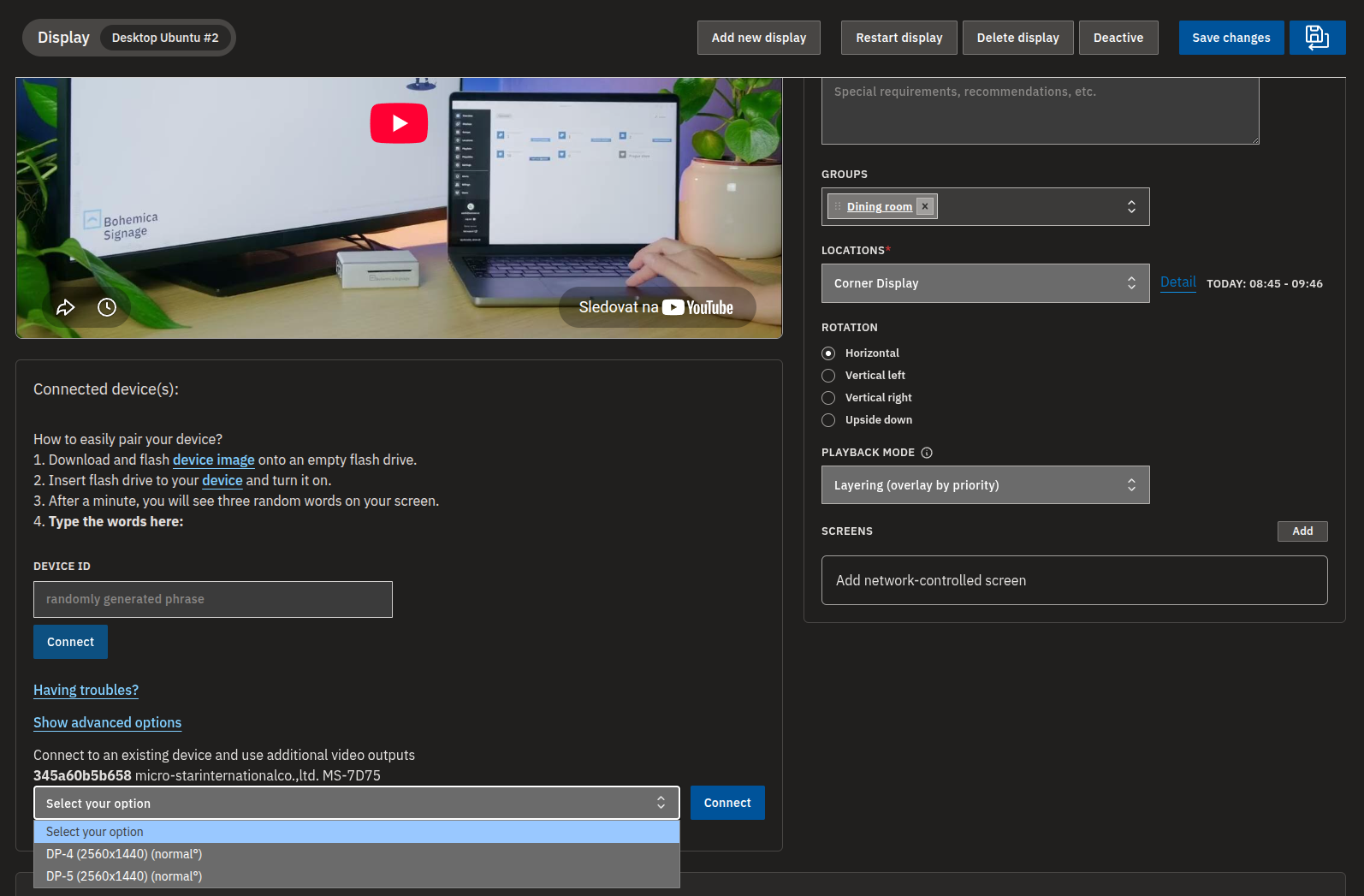
Using One Device's Extra Outputs for More Displays
If a player has spare video outputs, you can attach additional Displays to the same physical device:
- Open the Display you want to attach.
- In the Connected device(s) card, click Show advanced options.
- Under Connect to an existing device and use additional video outputs, find the device by its name.
- Pick an available video output from its dropdown.
- Click Connect to attach this Display to that output.
After Pairing
A paired Display still needs to be active before content plays. If it isn't, the dashboard prompts you to activate it right after pairing.
Warning
If you skip activation, nothing plays until the Display is activated — and activation may involve billing. Also make sure the Display belongs to a group that has scheduled content.
Once everything is connected, the Display detail page shows live device information such as the Device name, Current resolution, and when the device was last active. Some details may take a short moment to appear while the player finishes connecting.
Info
If you're browsing a department read-only, you can see this page but not pair or unpair devices.
FAQ
What's the difference between a Display and a Device?
A: A Display is the on-screen setup you create in the dashboard — its name, location, rotation, and content schedule. A Device is the physical player box plugged into your TV or monitor. Pairing links the two so the player downloads and shows that Display's content.
Can one player run more than one screen?
A: Yes. A device can have multiple video outputs and can be paired to multiple Displays. Right after pairing you choose which output a Display uses, and you can attach more Displays to the device's other outputs using Show advanced options.
For most setups we recommend up to two displays per device, which our standard players handle comfortably. With more powerful hardware and enough video outputs, a single device can drive many more — in practice the limit is simply whatever the device's performance, operating system, and number of video outputs allow.
It says "Invalid Connect string format!" when I try to connect.
A: The connect code must be exactly three words. Check for typos, extra words, or missing words, then try again.
I typed the words but it says "Connect string not verified". What now?
A: Check that you entered all three words exactly as they appear on the player screen, with no typos, and that the player is still showing the pairing screen and is online. Then try again.
Why can't I change the resolution?
A: Only some players support setting a preferred resolution. Players that don't support it use their own default resolution.
I scanned a code but it says the device is already paired.
A: That player is already linked to a Display, so it won't pair again. The dashboard recognizes this and opens the existing device instead, so you can see where it's currently connected.
Nothing plays after I paired the device. Why?
A: After pairing, the Display also needs to be active. The dashboard prompts you to activate it if it isn't — activate the Display, and make sure it belongs to a group with scheduled content.
Need help?
Still stuck? Our support team is happy to help — reach out and we'll get your Display up and running.