Locations and the Map
In Bohemica Signage, a Location is a physical place — a store, an office, or a site — where your screens live. Each Location holds two important settings: its Time zone and its business (opening) hours. Every display you assign to a Location inherits those settings, so all displays at a Location share the same time zone and opening hours.
The Locations page lists every place you've set up and, when your Locations have map coordinates, shows them all together on a map so you can see at a glance which sites are healthy and which need attention.
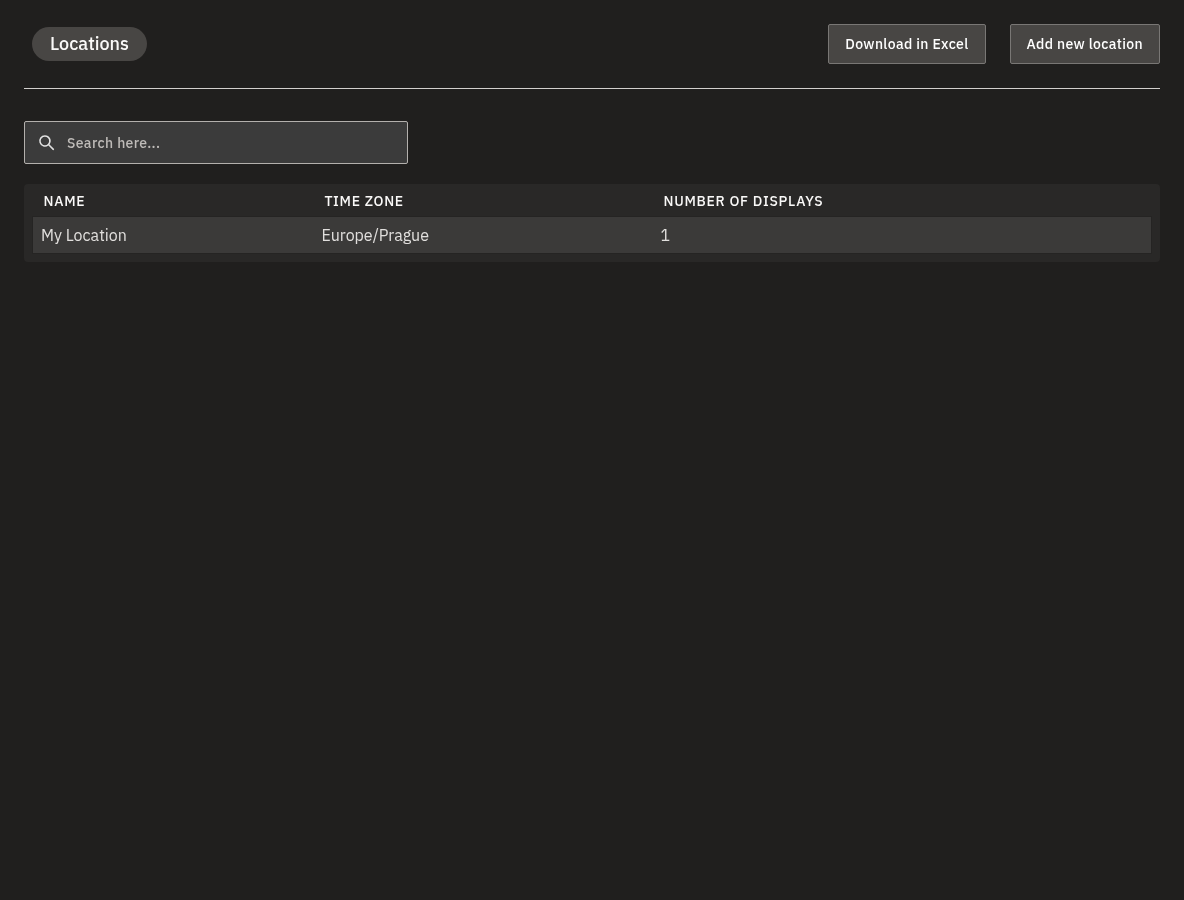
Open the Locations list
- In the main menu, choose Locations.
- Review the table. Each row shows three columns:
| Column | Meaning |
|---|---|
| Name | The name of the place. |
| Time zone | The time zone its displays inherit. |
| Number of displays | How many displays are assigned to that Location. |
Info
Assigning a display to a Location is done from the display itself. See Creating and Configuring Displays for how a display picks up its Location's time zone and hours.
Sort and search the list
- Click a column header to sort the list by that column.
- Type into the search box to filter the list. Search matches mainly on the location Name, and also on the Time zone.
If nothing matches what you typed, the list simply comes up empty — clear or change the search to bring the rows back.
Read the all-locations map
Below the list you'll find the Map Overview panel, which places one pin per Location on a world map.
- Scroll down to the Map Overview panel.
- Look at each pin's color to see how the displays at that Location are doing:
| Pin color | What it means |
|---|---|
| Blue | All displays at that Location are online — or the Location has no displays assigned yet. |
| Amber / orange | Some displays at that Location are offline. |
| Red | All displays at that Location are offline. |
- Pins that have offline displays also show a small red exclamation-mark (!) badge, so problem sites stand out.
- Click a pin to open that Location's detail page, or read the popup to see the Location's name and time zone.
💡
A blue pin doesn't always mean "everything's running" — it can also mean the Location simply has no displays assigned yet. Check the Number of displays column if you're not sure.
Info
The Map Overview panel only appears once at least one Location has map coordinates. If none of your Locations have coordinates yet, you won't see the map at all.
Warning
The map needs a browser with WebGL (graphics acceleration) to draw. If your browser or device can't render it, no pins appear — but the list above still works normally, and you can still give a Location coordinates by typing its latitude and longitude in by hand.
Show only locations with problems
When you're checking on your screens across locations, you usually only care about the sites that need attention.
- Above the map, turn on the Show only offline displays toggle.
- The map now hides healthy (all-online) Locations and shows only those with some or all displays offline.
- Turn the toggle off again to see all mapped Locations.
Info
This toggle filters the map only — it doesn't change the table above it.
Make a location appear on the map
A Location only shows up on the map once it has coordinates.
- Open the Location and set both its Latitude and Longitude. You can use the address search field, click and drag the marker on the Location's own map, or type the coordinates in by hand.
- Save. The Location now appears as a pin on the Map Overview.
Warning
Both Latitude and Longitude are required for a pin to appear — set both, or leave both empty. A Location with only one of them (or neither) still shows in the list, but never on the map.
Export the locations list to Excel
You can download your full list of Locations as a spreadsheet.
- At the top of the Locations page, click Download in Excel.
- An Excel spreadsheet (
.xlsx) with all your Locations downloads to your computer.
The export includes, for each Location: ID, Name, Time zone, Number of displays, Router Public IP, Router Winbox Port, Router GUI Admin Port, Router SSH Port, Router Credentials, WLAN SSID, WLAN Password, Disable Roaming, Specific AP BSSID, Latitude, Longitude, and Notes.
Warning
This file is sensitive. It contains your on-site router credentials (login, ports, and public IP) and your Wi-Fi password in plain, readable text. Treat it as IT-only material: store it securely, share it only with trusted staff, and delete copies you no longer need. Don't email it around or leave it in shared folders.
A note on "online" vs. "offline"
The pin colors are driven by whether the players at a Location have checked in with the system recently. If a player hasn't reported back for a while, it's treated as offline until it checks in again. For a closer look at individual displays and their status, see Monitoring and Operating Displays.
Info
Use Add new location (top of the page) to create a new Location. If you're browsing another department read-only, you can see this page but not change it — see Departments, Users & Roles.
FAQ
Why isn't my location showing up on the map?
A: A Location only appears on the map if it has both a Latitude and a Longitude set. Open the Location, set its coordinates (search the address or place the marker on its map), and save. It will then show as a pin.
What do the pin colors on the map mean?
A: Blue means all displays at that Location are online (or it has no displays yet), amber/orange means some displays are offline, and red means all displays at that Location are offline. Pins with offline displays also show a small red exclamation-mark badge.
How do I see only the locations that have a problem?
A: Turn on the Show only offline displays toggle above the map. The map then hides all-healthy Locations and shows only those with some or all displays offline.
Is the exported Excel file safe to share?
A: Be careful — the export contains router and Wi-Fi credentials in clear text. Only share it with trusted staff, keep it somewhere secure, and delete copies you no longer need.
What does it mean when a display is "offline"?
A: It means the player at that Location hasn't checked in with the system recently, so it's treated as offline until it reports back in.
Need help?
Still not sure why a site looks offline, or whether a pin color is accurate? Our support team is happy to help — reach out and we'll take a look with you. If you need to share network details for troubleshooting, please send them securely rather than over email.