Payment Card and Company Details
Before Bohemica Signage can bill you, it needs two things: your company details (so your invoices are correct) and a verified payment card. Both live in the Billings section, under the Customer details and Card details tabs. Filling these in is also what unlocks running more than one display — the single most-active display is always free, so you can try the product with one screen before you ever add a card.
This article walks you through each step. For list prices, see Pricing. For reading your invoices and seeing what you're being charged for, see Billing and Invoices. For activating and deactivating displays (which is what billing is based on), see Monitoring and Operating Displays.
Info
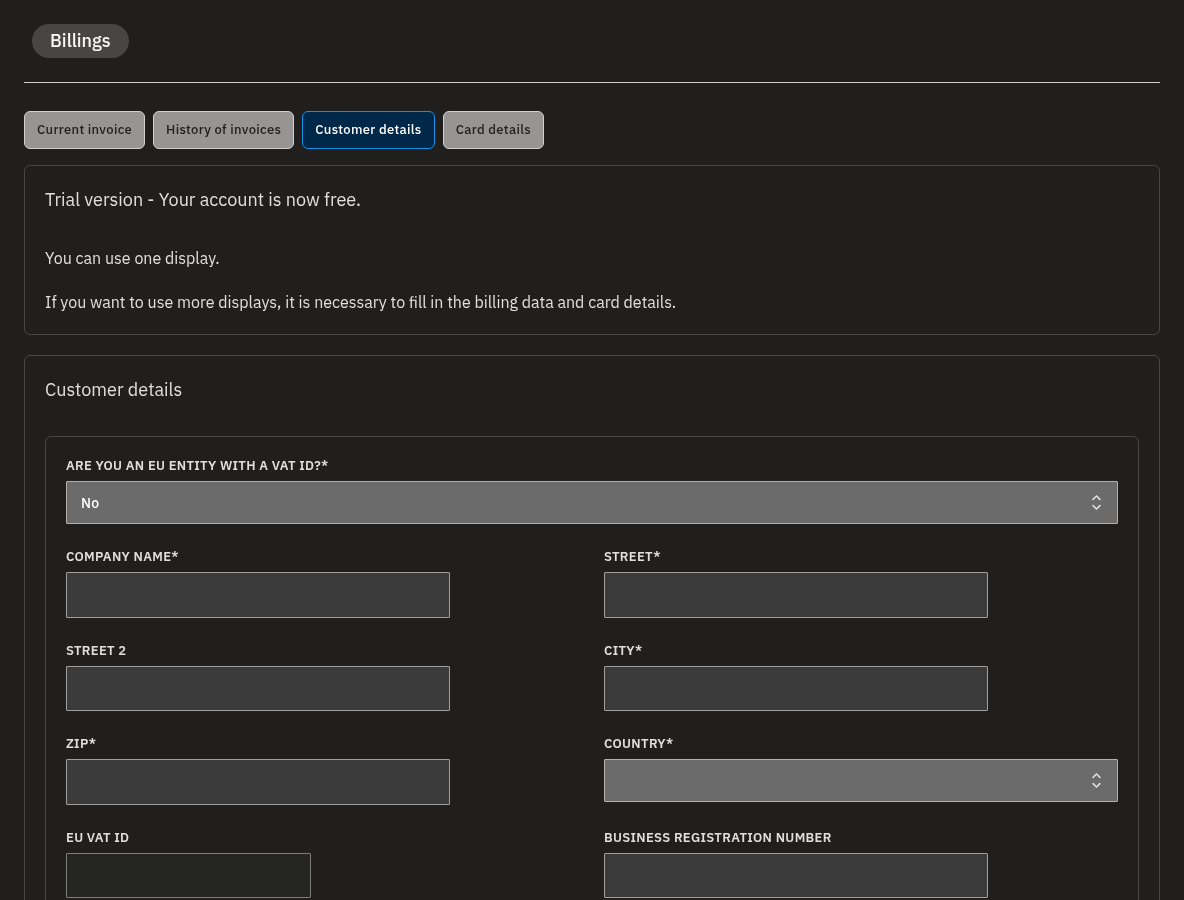
You enter your Customer details first, then add your Card details. The card option only becomes available once your customer details are saved.
Enter your company details
- Open the Billings section and select the Customer details tab.
- If nothing has been filled in yet, click the Edit button on the right.
- Answer Are you an EU entity with a VAT ID? with Yes or No.
- Fill in Company name, Street (and optional Street 2), City, ZIP, and choose your Country.
- Optionally add a Business Registration Number and a Note On Invoice — anything you type here appears on your invoices.
- Enter your Billing email. This is where your invoices are sent.
- Choose your Currency (see Choose your currency below — this choice is permanent).
- Click Save changes.
Warning
Company name is required — the form can't be saved without it.
💡
Your details are read-only after saving. To change them later, click Edit again, make your changes, and Save changes — or Close to discard. Note that your currency can't be changed once saved (see below).
Add your EU VAT number with auto-fill
If your company is an EU business with a VAT ID, Bohemica Signage can validate it against the official EU VIES database and fill in your company name and address for you.
- On the Customer details tab, set Are you an EU entity with a VAT ID? to Yes.
- Type your VAT number into the EU VAT ID field.
- Click Fetch information.
- The number is checked against the EU VIES system. On success, your Company name, Street, City, ZIP, and Country are filled in automatically.
- Review the auto-filled details and make sure they're correct.
- Add your Billing email and Currency if you haven't already, then click Save changes.
Info
Prefer to type everything yourself, or not an EU VAT entity? Use Fill details manually and enter your company details by hand.
Warning
If the number is rejected as invalid, double-check that you've entered it correctly (or use Fill details manually). Enter the correct VAT number during initial setup: once your billing is fully set up, the EU VAT ID field is locked and can no longer be edited.
A note on VAT: your invoice always shows the VAT applied. EU businesses outside the Czech Republic that provide a valid EU VAT ID are invoiced under reverse charge, with 0% VAT. Czech customers are always invoiced with Czech VAT, and customers outside the EU aren't charged VAT.
Choose your currency (one time only)
Your currency is the currency every future invoice is charged in. It is set only once and is permanent.
- On the Customer details tab, in edit mode, open the Currency dropdown.
- Select the currency you want all future invoices charged in.
- Click Save changes. Once saved, the currency is locked and the field can no longer be edited.
Warning
Choose carefully. There is no way to change your currency after saving — if you pick the wrong one, it stays that way.
Add or change your payment card
Your card is added through an external payment gateway, which opens in a separate browser window.
- Make sure your Customer details are saved first — a card can only be added once they're filled in.
- Open the Billings section and select the Card details tab.
- Click Enter card details (or Change card if you already have a card on file). A new window opens to the payment gateway.
- Enter your card on the gateway and complete verification.
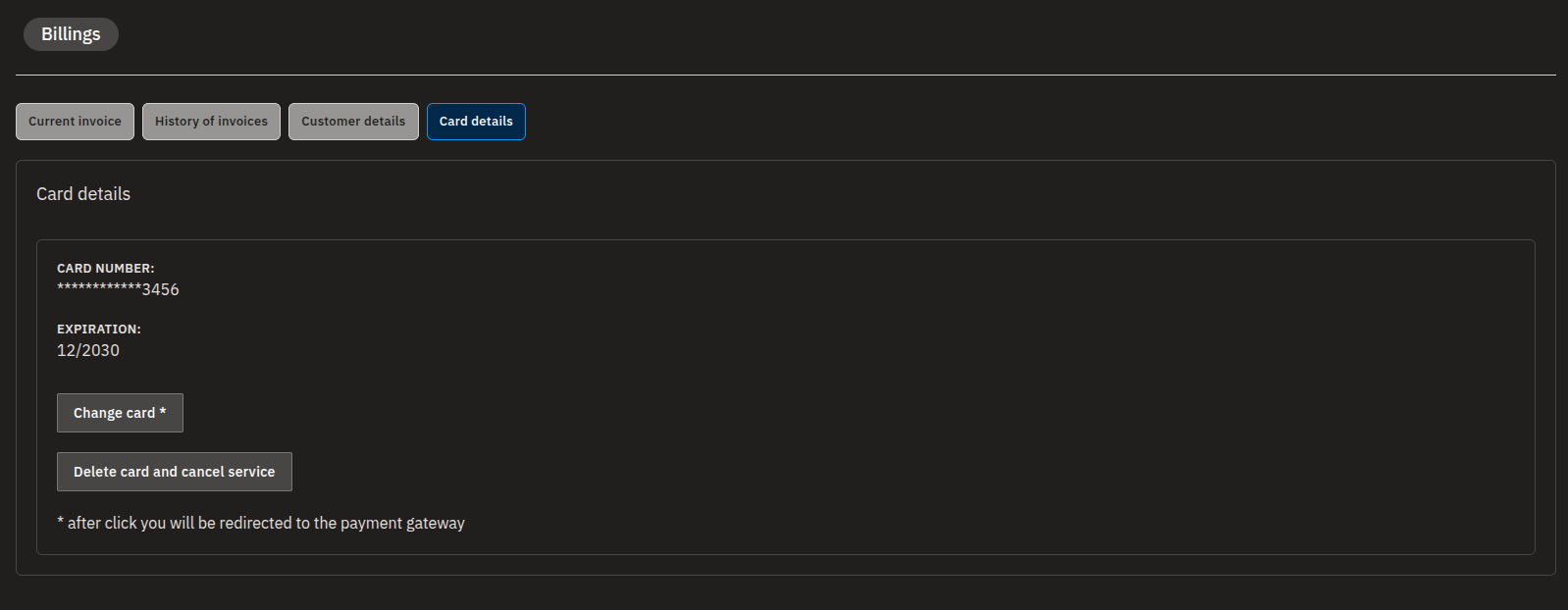
- Return to the app. Your card number and expiration date appear on the Card details tab.
Info
You won't be charged for adding a card. During verification, a small amount is pre-authorized on your card to confirm it works — 1 CZK on Czech koruna accounts, or 0.10 on euro and US dollar accounts — and it's released without ever being charged. You only ever pay based on your actual display usage.
💡
Your card details may not show up right away — it can take a few hours for the card number and expiration date to appear. This is normal.
Warning
The gateway opens in a new window or tab, so make sure your browser isn't blocking pop-ups. If a card change doesn't complete, simply start the card step again from the Card details tab.
Your card number stays with the payment gateway
Bohemica Signage never sees or stores your full card number. The card is held by the payment gateway — all we receive back is a masked number and the expiration date, just enough for you to recognize which card is on file.
When your card is about to expire
Bohemica Signage watches your card's expiration date for you and warns you on the Card details tab when the card is within a few days of expiring. When that happens, use Change card to add a fresh card before the old one expires so your service isn't interrupted.
Delete your payment card (cancel paid service)
Removing your card cancels the paid service and drops your account to the free version (a single display). It also settles whatever you owe up to that moment.
- Open the Billings section and select the Card details tab.
- Click Delete card and cancel service.
- Confirm to proceed. The amount owed for your usage so far is charged, and your account switches to the free version.
Warning
This can't be undone. Deleting your card immediately charges everything owed so far and downgrades you to the free version — only the single most-active display keeps running. Only do this if you intend to stop paid usage.
FAQ
Can I change my currency later? No. Your currency is chosen once during billing setup and is permanent, so pick the right currency before you save.
Why can't I add a payment card? You need to fill in and save your Customer details first — the option to add a card only becomes available after that.
Will I be charged when I add my card? No. When you verify the card, a small amount (1 CZK, or 0.10 on euro and US dollar accounts) is pre-authorized but not actually charged. You only pay based on your actual display usage.
My card details don't show up after adding a card — is something wrong? No. The card number and expiration can take a few hours to appear after you add a card.
Where do my invoices get sent? To the Billing email you enter in your Customer details. You can also add a Note On Invoice that appears on the invoice itself.
What happens when I delete my payment card? You're charged for the services used up to that day, and then the app is limited to the free version (a single display). This effectively cancels the paid service, so only delete your card if you mean to stop paid usage.
Need help?
If a VAT number won't validate, a card won't save, or you're unsure about your billing details, reach out to your Bohemica Signage support contact — we're happy to help. You may also find these related articles useful: Pricing, Billing and Invoices, Monitoring and Operating Displays, Departments, Users & Roles, and Managing Devices.