Billing and Invoices
Bohemica Signage is pay-as-you-go: each display is charged for the time it's activated — never more than one month's price — and the single most-active display in each billing period is free. The Billings section is where you can see exactly what you're paying for — your running costs this month, a prediction of the month's total, and every past invoice ready to download. This article shows you how to read it.
For list prices and tiers, see Pricing. For activating and deactivating displays (which is what starts and stops billing), see Monitoring and Operating Displays.
How billing works
A few plain facts make the rest of this page easy to read:
- You pay for how long each display is activated. A display that's activated for only part of the month costs less than one that runs the whole month.
- The most-active display in each billing period is free — it isn't charged on your invoice. Because it's based on activity, the free display can change from one period to the next.
- The monthly price on the Pricing page is the most a single display can cost in one month — shown in the dashboard as the Maximum monthly price per display. A display that's activated for most of the month reaches that maximum.
- VAT is shown on every total.
- Exact prices and tiers live on the Pricing page.
💡
The free display moves with usage. If a different screen is your busiest next month, that one is free instead — you don't have to choose or change anything.
Open the billing area
- Open the dashboard and go to the Billings section from the main menu.
- Use the tab buttons at the top to switch between Current invoice, History of invoices, Customer details, and Card details.
| Tab | What it shows |
|---|---|
| Current invoice | Your running costs for the month in progress and a predicted total. |
| History of invoices | Past, closed billing periods, with PDF invoices to download. |
| Customer details | The billing details and currency on file. |
| Card details | The payment card on file. |
Info
What you see in Billings depends on your account:
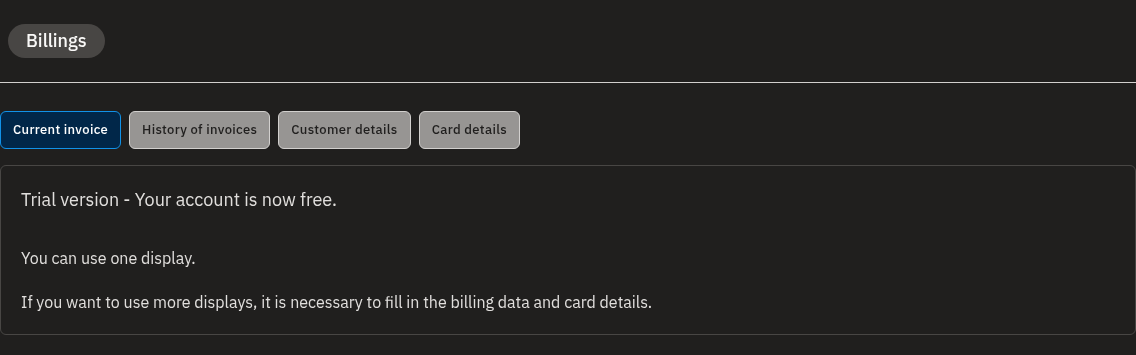
- Trial — your account is free and you can use one display. You won't see a current invoice or history yet.
- Trial with billing — once your customer and card details are filled in, you can start using more than one display.
- Standard — with more than one active display, you'll see the full Current invoice and History of invoices.
- Enterprise — billing is arranged separately, so this page isn't available for your organization.
Read your current invoice
- Select the Current invoice tab.
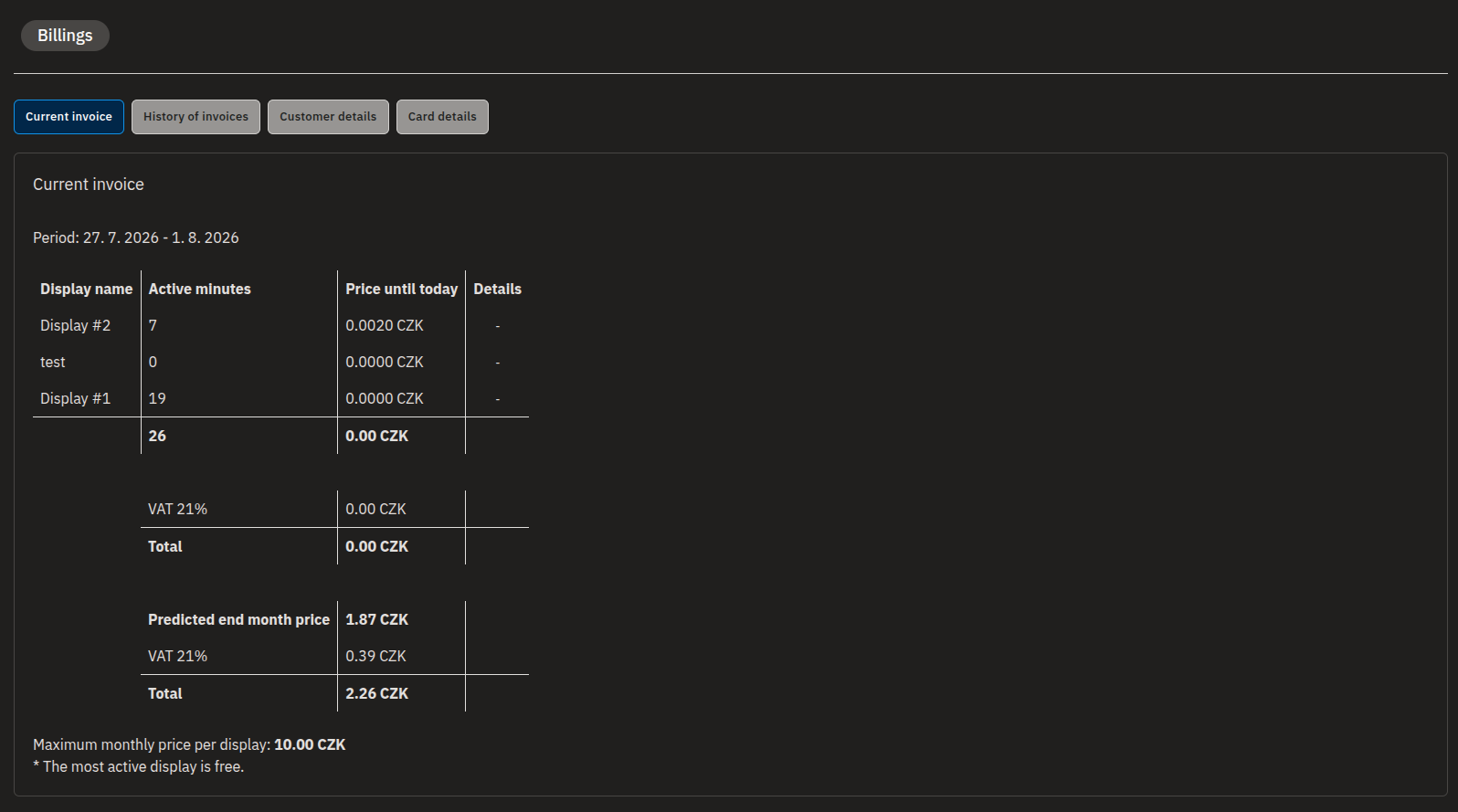
- Note the Period (From – To) at the top — this is the month in progress.
- Review the table. Each active display shows its Active minutes and Price until today.
- Read the VAT line and the Total to see your cost so far this period.
- Check the Predicted end month price block for the estimated total (with VAT) by the end of the month.
- Remember that your most-active display isn't charged this period, so that display's usage doesn't add to the total.
The Current invoice table uses these columns:
| Column | Meaning |
|---|---|
| Display name | The display being charged. |
| Active minutes | How long the display has been active this period. |
| Price until today | What that display has cost so far. |
| Details | An eye icon that opens the display's daily breakdown — shown only when the display's price changed during the period. |
Warning
The Predicted end month price is an estimate based on how your displays are running so far. It updates as displays run more or less, and it isn't the final charge.
💡
If you're about to move into a higher-volume price tier, the Current invoice warns you and shows the predicted tier and per-display price for next month. A Price Level History card may also show your current price level, the display-count range it covers, and when your level last changed. See Pricing for what each tier costs.
See a display's daily activity breakdown
Want to know exactly how a single screen added up?
- On the Current invoice tab, find the display you want to inspect.
- Click the eye icon in the Details column for that row.
- The popup lists the display's active minutes for each day of the period, with a total at the bottom.
- Click Close to return.
When the daily breakdown is available
The eye icon only appears for a display whose price changed during the billing period — that is, when your price level changed and the display has two or more spans charged at different prices. If a display ran at a single price for the whole period, there's no daily breakdown to open.
Find and download a past invoice
Closed billing periods live under History of invoices. (The month in progress stays on the Current invoice tab until it closes.)
- Select the History of invoices tab.
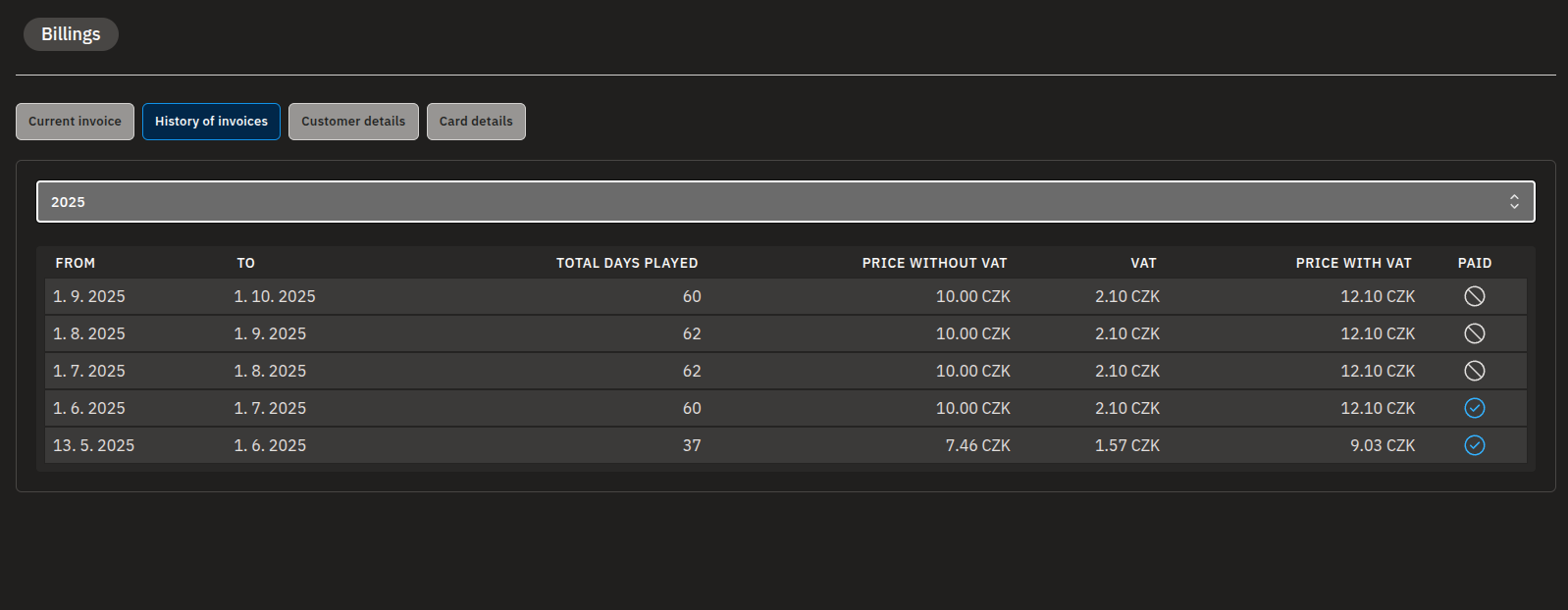
- Use the year dropdown to choose the year you want.
- Check the Paid column to see whether each period has been paid.
- Click the billing period row to open its detail page, which lists each display's name, active minutes and price, plus VAT and Total.
- Click View invoice to open the PDF invoice in a new browser tab, then save or print it from your browser.
The History table uses these columns:
| Column | Meaning |
|---|---|
| From / To | The start and end of the billing period. |
| Total days played | How many days displays were active in that period. |
| Price without VAT | The subtotal before tax. |
| VAT | The tax added. |
| Price with VAT | The amount charged. |
| Paid | Whether the period's invoice has been paid. |
Info
A period's PDF becomes available only once its invoice has been generated, so a very recent period may not have one yet. Invoices are issued through our invoicing provider and emailed to the billing email on file.
💡
If you haven't completed your first month yet, the History tab has nothing to show. Your costs are still tracked under Current invoice in the meantime.
A note on dates and currency
- Dates throughout the billing area are shown in day.month.year order (for example, 1.4.2025) — that's 1 April 2025, not January 4th.
- The currency is set once in Customer details and cannot be changed afterwards, so choose carefully when you first set up billing.
Warning
Removing your card details drops your account back to the free version with a single display. Keep a valid card on file if you rely on more than one active display.
FAQ
How am I charged for Bohemica Signage?
Billing is usage-based: each display is charged for the time it's activated — never more than one month's price — and the single most-active display in each billing period is free. Exact prices are on the Pricing page.
Which display is the free one?
The most-active display in the period is free. Because it's based on activity, the free display can change from period to period.
What does "Predicted end month price" mean?
It's an estimate of your total for the current month based on how your displays are being used so far. It updates as usage changes and isn't the final charge.
Where do I download my invoice?
Go to Billings > History of invoices, choose the year, click the billing period to open its detail, then click View invoice to open the PDF in a new browser tab where you can save or print it.
How do I know if an invoice is paid?
In History of invoices, the Paid column shows whether each billing period has been paid.
Why don't I see any invoices?
If you're on a trial, you only have a single free display and no invoice yet. If your account is enterprise, billing is handled separately and this page isn't available for your organization. If you simply haven't completed a month, the History tab stays empty until your first billing period closes — your running costs are on the Current invoice tab.
Need help?
Questions about a charge or a missing invoice? Our support team is happy to help — reach out and we'll walk through your billing with you. For how activating and deactivating displays affects your bill, see Monitoring and Operating Displays; to manage who's in your account, see Departments, Users & Roles and Managing Devices.