Offline Alerts
Nobody wants to find out from a customer's phone call that a screen has gone blank. Offline Alerts send an email to the people you choose whenever one of your players stops checking in, so you can react before anyone notices. This article shows you how to switch alerting on, decide who gets notified, keep the number of emails sensible, and review what has already been sent.
Alert settings are saved separately for each department, so you set them up once per department and they only affect the displays in that department. To learn how departments work, see Departments, Users & Roles.
Info
Alerting is off by default. No offline emails are sent until you turn alerting on, choose at least one recipient, and save.
Before you start
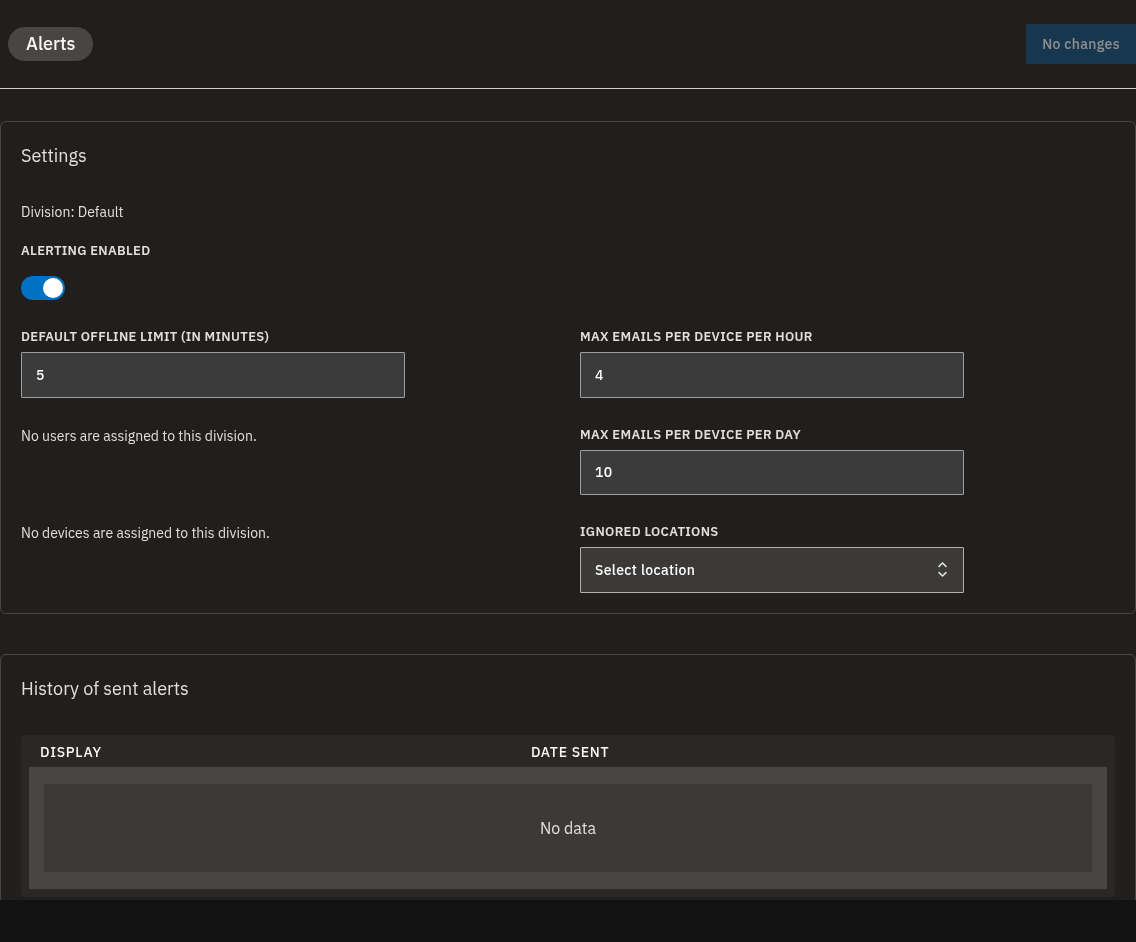
Open the Alerts screen. At the top of the Settings card you'll see the name of the department you're currently working in — every setting on this screen applies only to that department.
A few things to know:
- Only people who belong to the current department can be chosen as recipients.
- Only devices and locations in the current department can be ignored.
- Nothing is saved until you click Save changes in the header.
Warning
Switching to a different department discards any unsaved changes. Save first, then switch.
Turn on offline alerting for a department
- Make sure the correct department is selected — its name is shown at the top of the Settings card.
- Turn on the Alerting enabled switch.
- Set Default offline limit (in minutes) — how long a device must be continuously offline before an alert is sent. The default is 5 minutes.
- Under Alert recipients, use Select user to pick the people who should receive the offline emails. You must choose at least one recipient — otherwise no emails will be sent.
- Click Save changes in the top header.
That's it. From now on, if a device in this department stays offline longer than the limit, the people you chose will get an email.
💡
The offline limit must be at least 3 minutes — values below that are rejected when you save.
Info
Turn Alerting enabled on before editing the rest of the screen — the offline limit, recipients, email caps, and ignored lists only accept input while alerting is on. You also need to change at least one setting before you can save.
Limit how many alert emails are sent
A device that keeps dropping in and out shouldn't flood your inbox. Two caps control how many emails are sent per device:
| Setting | What it does | Default |
|---|---|---|
| Max emails per device per hour | The most alert emails one device can trigger in an hour. | 4 |
| Max emails per device per day | The most alert emails one device can trigger in a day. | 10 |
- With alerting enabled, set Max emails per device per hour.
- Set Max emails per device per day.
- Click Save changes.
Because the caps are counted per device, a single offline display can't trigger more emails than these caps allow in an hour or a day. When alerting is on, each cap must be at least 1.
Stop specific devices or locations from triggering alerts
Some screens are meant to be switched off — a display in a meeting room, or a whole location that's closed for the season. You can tell those to never raise an alert.
- With alerting enabled, use Ignored devices and Select device to choose players that should never send an alert.
- Use Ignored locations and Select location to choose locations whose devices should never send an alert.
- Click Save changes.
💡
Ignoring a location is the quick way to silence every device in that location at once, instead of adding them one by one.
Review alert emails already sent
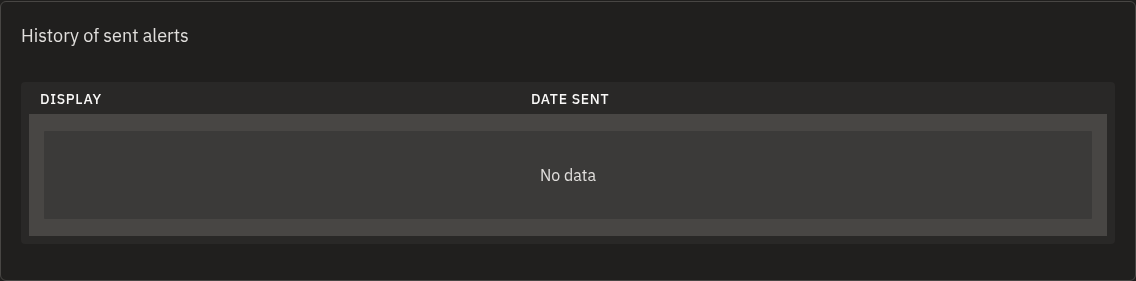
At the bottom of the Alerts screen, the History of sent alerts card keeps a record of the emails that have gone out.
| Column | What it shows |
|---|---|
| Display | The name of the display that went offline. |
| Date sent | When the alert email was sent. |
Use the pagination controls to move through older entries. Click a display name to jump straight to that display's details — handy for following up. To learn more about reading a display's status, see Monitoring and Operating Displays.
If a selection list is empty
The recipient, device, and location lists only show items that belong to the current department, so an empty list means the department has no users, devices, or locations assigned to it yet.
If that's the case, add the relevant people or devices to the department first. See Departments, Users & Roles and Managing Devices.
Warning
If a person, device, or location is removed from the department after you've added them to your alert settings, saving the screen again may show a validation error. Update the affected list and save again.
FAQ
How long does a player have to be offline before I get an alert? By default a device must be offline for 5 minutes. You can change this with Default offline limit (in minutes), but it can't be set lower than 3 minutes.
Why am I not getting any offline alert emails? Check that Alerting enabled is turned on for the correct department, that you're listed under Alert recipients, that the device or its location isn't in the Ignored devices or Ignored locations lists, and that you've clicked Save changes.
Can I stop a particular display from sending alerts? Yes. Add it to Ignored devices, or add its location to Ignored locations, then click Save changes.
How many alert emails will I get for one device? Alert emails are capped per device by Max emails per device per hour (default 4) and Max emails per device per day (default 10).
Do alert settings apply to all my displays? They apply only to the department you're currently working in. Each department has its own alert settings, so configure each one separately.
Where can I see which alerts have already been sent? The History of sent alerts table at the bottom of the Alerts screen lists past alert emails with the display name and the date sent.
Need help?
If your alerts aren't behaving the way you expect, double-check the steps above for the right department, then reach out to our support team. If you also want help confirming whether a display is genuinely offline, see Monitoring and Operating Displays.