Two-Factor Authentication
Two-factor authentication (2FA) adds a second step to signing in, on top of your password. Even if someone learns your password, they still can't get into your account without a code from your authenticator app or phone. You set 2FA up for your own account from the Account Settings screen, and you can change or turn it off whenever you like. This article walks you through enabling 2FA, saving your recovery codes, and signing in once it's on.
💡
2FA is one of the simplest, strongest things you can do to protect your account. It only takes a couple of minutes to set up.
Where to find it
Open Account Settings and look in the Account Security section for the Two-Factor Authentication card. From there, click Set Up 2FA to start the setup flow, or — once 2FA is on — Manage 2FA to regenerate recovery codes or turn it off.

Choose how you'll receive codes
You can secure your account in one of two ways. Only one method can be active at a time, so pick the one that suits you.
| Method | How it works | Good to know |
|---|---|---|
| Authenticator app (default) | Scan a QR code with an app like Google Authenticator, Authy or 1Password, and it generates a fresh 6-digit code every 30 seconds. | The recommended, default method. |
| SMS verification | We text a 6-digit code to your phone when you need one. | Codes are valid for 10 minutes. |
On the setup screen you can switch between them at any time with Use SMS verification instead and Use authenticator app instead.
Info
Switching methods clears the previous one. If you set up the authenticator app and then switch to SMS (or the other way round), the first method is cleared — you can only have one active at a time.
Set up 2FA with an authenticator app
- Go to Account Settings and find the Two-Factor Authentication card in the Account Security section.
- Click Set Up 2FA.
- Click Enable Two-Factor Authentication.
- Open your authenticator app (for example Google Authenticator, Authy or 1Password) and scan the QR code shown on screen.
- Enter the 6-digit code shown in your app.
- Click Verify and Enable.
- Save your recovery codes (see Save your recovery codes below), tick the confirmation box, and click Finish Setup.
💡
Can't scan the QR code? Click Can't scan? Enter code manually to reveal a Secret key, then type (or copy) it into your authenticator app instead.
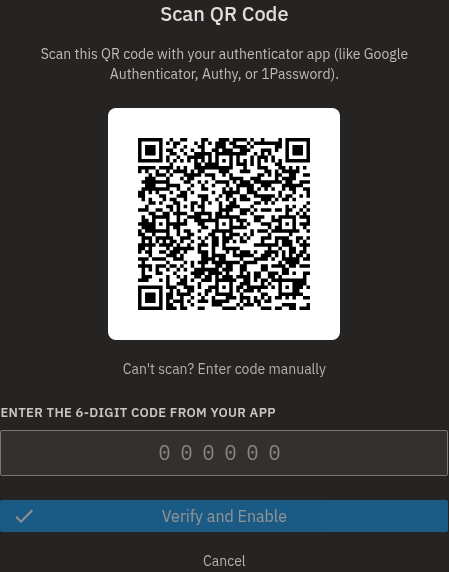
If your code is rejected, check that your phone's time is correct and enter the latest code your app shows.
Set up 2FA with SMS
- Go to Account Settings and click Set Up 2FA in the Two-Factor Authentication card.
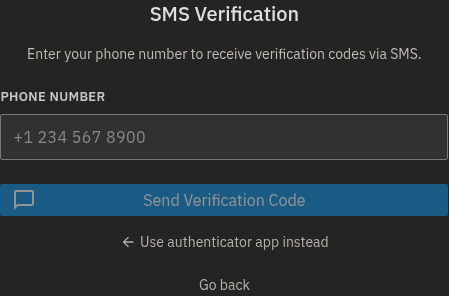
- On the setup screen, click Use SMS verification instead.
- Enter your number in the Phone number field (for example
+1 234 567 8900). - Click Send Verification Code.
- Wait for the text message, then enter the 6-digit code it contains.
- Click Verify and Enable.
- Save your recovery codes, tick the confirmation box, and click Finish Setup.
If the text doesn't arrive, click Resend code to send a fresh one — it becomes available again after a 60-second cooldown. SMS codes are valid for 10 minutes; request a new one if more time has passed. If you mistyped your number, click Change phone number to re-enter it.
Save your recovery codes
After you verify, the Save Your Recovery Codes screen appears with a set of 8 codes. These let you sign in if you ever lose access to your authenticator app or phone — they're the only way to get back into your account on your own, so don't skip this step.
- Click Download to save them as a text file (
bohemica-signage-recovery-codes.txt), or Copy to copy them. - Store them somewhere safe and private.
- Tick the confirmation box to confirm you've saved them.
- Click Finish Setup.
Warning
Each recovery code works only once, and this exact set is only shown during setup — save it before you click Finish Setup. If you ever lose your codes, you can generate a fresh set later from Manage 2FA; regenerating immediately replaces the old ones.
Sign in when 2FA is on
- Enter your email and password as usual (or sign in with SSO).
- When prompted, enter the 6-digit code from your authenticator app. If you use SMS, a code is texted to you automatically at this point — enter that.
- Can't reach your app or phone? Enter one of your saved recovery codes instead. Remember each one works only once.
Info
If you enter the wrong code too many times in a row, further attempts are paused briefly for your protection. Wait a moment and try again.
If you can't reach your device or codes
Your recovery codes are your safety net. If you lose your phone or authenticator app, signing in with a recovery code is the only way to get back into your account on your own — which is exactly why saving them during setup matters.
If you've lost access to both your authenticator app (or phone) and your recovery codes, the only way back in is to contact our support team. For your protection, we can't simply switch 2FA off on request — we first have to be sure you really are the account owner and not someone trying to break in.
Expect to answer a few questions about the account before we hand access back. Keeping your recovery codes somewhere safe avoids all of this.
Manage or turn off 2FA
Once 2FA is enabled, click Manage 2FA from the Two-Factor Authentication card to make changes.
Regenerate recovery codes
If you've used some of your codes or think they may no longer be private, you can create a fresh set.
- Click Manage 2FA.
- Click Regenerate Recovery Codes.
- Download or Copy the new codes and store them safely.
Warning
The moment you regenerate, all of your old recovery codes stop working. Be sure to save the new set.
Disable 2FA
- Click Manage 2FA.
- In the Disable Two-Factor Authentication section:
- If you sign in with a password, type your password and click Disable 2FA.
- If you sign in via SSO (Google or Microsoft) and have no password, click Disable 2FA and confirm when prompted.
If you enter the wrong password, you'll see an incorrect-password error and 2FA stays on.
Warning
Turning off 2FA makes your account less secure. We recommend keeping it on.
Change your phone number while SMS 2FA is on
You can't change your account phone number directly while SMS 2FA is active. Temporarily disable SMS 2FA first, then change your number, then set it up again.
If your organization requires 2FA
Some organizations make 2FA mandatory. If yours does, you'll be asked to set up 2FA right after signing in, and you can't use the application until setup is complete — the only alternative is to log out. Once you finish setup, you can use the app as normal.
FAQ
Which authenticator apps work?
Any standard authenticator app, for example Google Authenticator, Authy or 1Password. Scan the QR code during setup, or use Can't scan? Enter code manually to enter the secret key by hand.
What are recovery codes for?
They let you sign in if you lose access to your authenticator app or phone. You get a set of them during setup. Save them somewhere safe, because each code can only be used once.
I didn't receive my SMS code.
Wait for the 60-second cooldown to finish, then click Resend code. Codes are valid for 10 minutes. If the number was wrong, use Change phone number to re-enter it.
I use Google or Microsoft to sign in and have no password. Can I still use 2FA?
Yes. Setup is the same. When you want to disable 2FA, you confirm a prompt instead of typing a password.
What happens if I regenerate my recovery codes?
A brand-new set is created and your old codes stop working immediately. Download or copy the new codes and store them safely.
I lost my phone and my recovery codes — how do I get back in?
Recovery codes are the only way to sign in on your own once you've lost your device. If you've lost those too, contact our support team — we'll confirm you're the real account owner and then help you regain access.
Need help?
Still have questions about two-factor authentication? Contact Bohemica support — we're happy to help. You may also want to read Departments, Users & Roles to understand how account access works across your organization.