Organizing Playlists
Once you have more than a handful of playlists, a little housekeeping goes a long way. This article shows you how to find playlists quickly, group them into folders, turn them on or off, duplicate them, tidy up with bulk actions, and confirm which screens each playlist actually plays on.
New to playlists? Start with Creating Playlists to learn how to build one and set item durations. Folders work hand in hand with the display-group ideas in Managing Display Groups.
Reading the Playlists list
Open Playlists from the main menu. The list is a folder-aware table, so playlists can sit on their own or be tucked inside folders you create.
Each row shows these columns:
| Column | Meaning |
|---|---|
| Name | The playlist (or folder) name. Audio-only playlists show an Audio only badge next to theirs. |
| Priority | The playlist's priority value. See Playback Modes for how priority affects what plays. |
| Enabled | Whether the playlist currently plays or is paused. |
| Last update | The date and time the playlist was last changed. |
| Total duration | The combined play time of every item in the playlist. |
💡 What "Total duration" counts
Total duration adds up each item's duration multiplied by how many times it repeats, shown in a readable format such as 5 min 30 s or 1 h 2 min 3 s.

Find a playlist
- Search — type in the Search playlist information box to filter the list. Search matches the playlist name only, so typing a few letters of the name is the fastest way to find it.
- Sort — use the sort control to reorder the list alphabetically by name (in either direction) or by creation date (oldest or newest first).
- Expand all / Collapse all — open or close every folder in the tree at once, so you can see everything or keep things compact.
Organizing playlists into folders
Folders let you group playlists by location, campaign, season, or however you like — and folders can be nested inside other folders to build a tidy tree.
- Click Add new folder in the header.
- Enter a folder Name.
- To nest it, choose a parent folder. Leave the parent empty to keep the folder at the top level.
- Save the folder.
To rename a folder or move it under a different parent later, use Edit folder on that folder, make your change, and save.
Info
A folder can't be set as its own parent. If you are reorganizing a deep tree, move folders one level at a time.
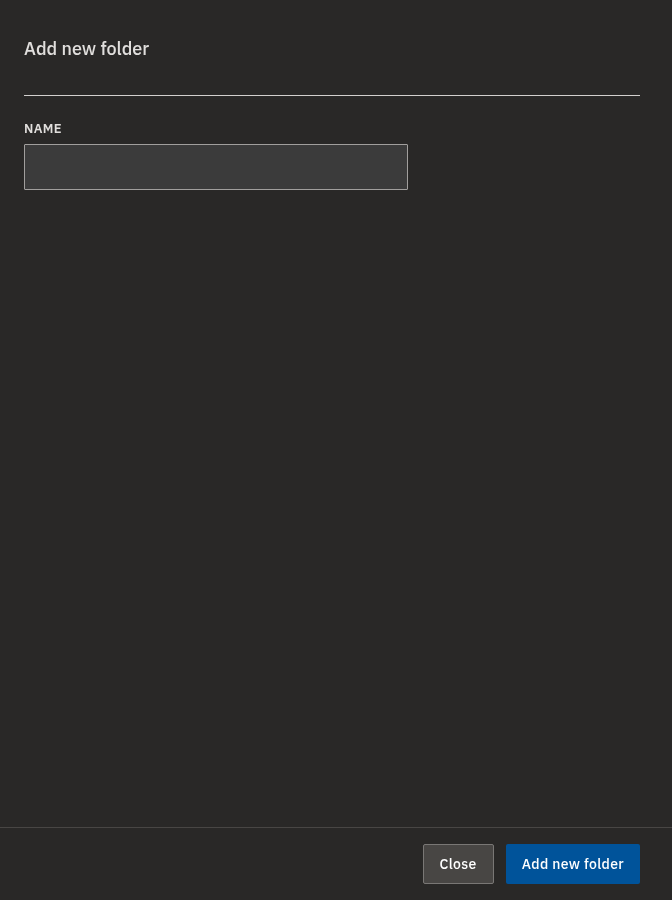
Create a folder while building a playlist
You don't have to set up folders in advance. You can make one on the spot from the playlist form:
- Click Add new playlist.
- Click the + button next to the Folder picker. The Add new folder panel opens inline.
- Fill in the new folder's Name (and an optional parent), then save.
- The new folder is automatically selected for this playlist — no need to go back and pick it.
💡
This is the quickest way to file a new playlist as you create it, without leaving the form.
Enabling or disabling a playlist
Disabling is a gentle way to take a playlist off your screens without losing it. The playlist stays in your list and keeps all its items — it simply stops playing until you turn it back on.
- Open the Add new playlist form, or an existing playlist's detail page.
- Toggle the Enabled switch. (It is on by default for new playlists.)
- Save.
- The Enabled column in the list reflects whether the playlist plays or is paused.
Info
Disabling doesn't delete anything. To pause a seasonal playlist for a while, disable it rather than deleting it — then re-enable it when you need it again.
Duplicating playlists
Duplicating is handy when you want a near-identical playlist as a starting point. A copy keeps the original's display-group assignments and all of its items, but is a separate playlist you can edit on its own.
Duplicate a single playlist
- Tick the checkbox on one playlist.
- Click Duplicate in the group actions bar.
- After a moment you are taken to the new copy, which is named after the original with a (copy) suffix.
Duplicate several playlists or a whole folder
- Tick the checkboxes on several playlists and/or folders.
- Click Duplicate.
- The list reloads with the copies in place — each name gets a (copy) suffix, and any folder structure you selected is recreated.
💡
Duplicating a folder copies the whole subtree: the selected folders and the playlists inside them are rebuilt in one step.
Selecting and bulk-deleting
Ticking checkboxes reveals a group actions bar with Duplicate, Delete, Select all, Clear selection, and Expand all / Collapse all.
To remove playlists:
- Tick the checkboxes of the playlists and/or folders to remove, or use Select all.
- Click Delete.
- Confirm the deletion when prompted.
- Larger selections ask for a second confirmation in your browser before anything is removed.
- Changed your mind partway? Use Clear selection to deselect everything without deleting.
Warning
Deleting is permanent. Removing a playlist also removes its items, and deleting a folder affects everything inside it. Double-check your selection before you confirm.
Can't delete a playlist?
If a playlist is linked to a display group that belongs to another department, the system blocks deletion to protect that department. Remove that cross-department link first, then delete. See Managing Display Groups.
Checking which displays a playlist reaches
A playlist only shows on screens through the display groups it is assigned to. You set those on the Add new playlist form using the Groups picker — see Creating Playlists for the full walkthrough. To see the result of that chain:
- Open the playlist's detail page.
- Scroll to Displays linked to this playlist:. It lists every display the playlist reaches, by way of its assigned display groups.
- Click a display name to open that display's detail page.
If no displays are listed, the playlist isn't reaching any screen yet — either it has no display groups, or its groups have no displays. Assign it to one or more display groups so it has somewhere to play.

💡
This is the quickest sanity check before a launch: open the playlist and make sure the right screens appear under Displays linked to this playlist:.
Downloading the list to Excel
You can export your list as a spreadsheet for record-keeping or sharing.
- Click Download in Excel at the top of the Playlists page.
- Open the downloaded My Signage Playlists.xlsx file.
- Review the columns: ID, Name, Priority, Enabled, Creation date, Total duration, Folder ID, and Folder.
Info
The spreadsheet is built from the playlists currently loaded in your list. The export isn't available in every version of the dashboard.
FAQ
What does the Total duration column mean?
It is the combined play time of every item in the playlist, counting each item's duration times how many times it repeats, shown in a readable format such as 5 min 30 s.
If I disable a playlist, is it deleted?
No. A disabled playlist stays in your list but stops playing on its displays. Toggle it back on any time.
Can I duplicate a whole folder of playlists at once?
Yes. Select the folder (or several items) and click Duplicate. The folder structure and the playlists inside are recreated, each with a (copy) suffix.
Why doesn't search find my playlist by its description?
Search matches the playlist name only. Try a few letters of the name rather than words from a description or other fields.
Need help?
Still stuck? Check the related articles below or reach out to our support team — we're happy to help.