Playback Modes
Every display in Bohemica Signage can belong to one or more groups, and each group carries its own playlists. The Playback mode setting decides how all of those playlists are combined into the single timeline your screen actually plays. Choosing the right mode lets you either layer your content automatically or play each group as its own block, in an order you control.
The three playback modes
You set Playback mode on each individual display, and there are exactly three options:
| Mode | What it does |
|---|---|
| Layering (overlay by priority) (default) | Merges the playlists from all of the display's groups and overlays them by priority. The highest-priority playlist plays, and lower-priority playlists only fill the time gaps the higher one leaves. |
| Sequential (play groups one after another) | Plays each group's playlists back-to-back, one group after the next, in the group order set on the display. Within each group, playlists play in priority order. |
| Sequential, no repeats | Works just like Sequential, but if the same playlist is attached to more than one of the display's groups, it plays only once — at its first occurrence — instead of repeating for each group it belongs to. |
Info
In every mode, only enabled playlists are ever included. A disabled playlist will never appear on screen, no matter which mode you choose.
Info
The ad spots of an audio-only playlist play only in Layering (overlay by priority). In the two Sequential modes, such a playlist plays its background music only.
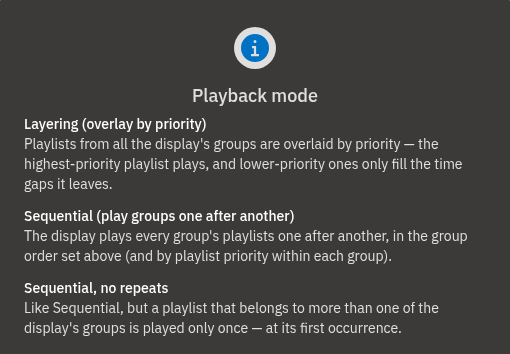
Choosing a playback mode for a display
- Open the dashboard and go to the Displays tab, then select the display you want to configure.
- Find Playback mode in the display's settings.
- Open the dropdown and pick one of Layering (overlay by priority), Sequential (play groups one after another), or Sequential, no repeats — see the table above for what each mode does.
- Save the display. The screen's content updates to follow the chosen mode.
💡
Not sure which to pick? Leave it on the default, Layering (overlay by priority). It's the right choice for most displays, where you want one main playlist on screen and other playlists to quietly fill in the times it doesn't cover.
Setting the order groups play in
In the two Sequential modes, your display plays its groups in the order they're listed in the display's Groups field. You control that order directly.
- Open the display's settings in the dashboard.
- Go to the Groups field, which lists the groups assigned to this display.
- Drag the group chips into the order you want them to play — the first one in the list plays first.
- Add or remove groups here if needed.
- Save the display. In a Sequential mode, the display now plays the groups in this order; within each group, playlists play by their Priority.
Warning
You can't reorder individual playlists by hand for the Sequential modes — within a group, playlists always play in Priority order. If content inside a group plays in the wrong order, adjust the playlists' priorities to fix it.
Which mode should you use?
- Choose Layering (overlay by priority) when you want one main playlist on screen and other playlists to automatically fill only the times the main one doesn't cover.
- Choose Sequential (play groups one after another) when you want each group's content to play as its own block, one group after the next, in an order you control.
- Choose Sequential, no repeats when you're using Sequential but the same playlist is shared by several groups and you don't want it to play more than once per cycle.
💡
Because Playback mode is set per display, the same group can behave differently on two screens — each display has its own mode and its own group order, even when they share groups.
FAQ
What is the difference between Layering and Sequential playback?
A: Layering overlays all of a display's playlists by priority — the highest-priority playlist plays, and lower-priority ones only fill the gaps it leaves. Sequential instead plays each group's playlists one after another (back-to-back), in the group order you set on the display.
Which playback mode is the default?
A: Layering (overlay by priority) is the default for every display.
How do I control the order groups play in?
A: In a Sequential mode, the display plays groups in the order they appear in the display's Groups field. Drag the group chips into the order you want, then save.
What does "Sequential, no repeats" do?
A: It works like Sequential, but if the same playlist is attached to more than one of the display's groups, it plays only once — at its first occurrence — instead of repeating for each group it belongs to. Note that it only removes duplicates of a shared playlist; it doesn't de-duplicate individual pieces of content across different playlists.
A lower-priority playlist isn't showing in Layering — is something broken?
A: No, that's expected. In Layering, a lower-priority playlist only appears during the time gaps left by higher-priority playlists, so it can look like it has "disappeared" when a higher-priority playlist is covering the schedule.
Can different displays use different playback modes?
A: Yes. Playback mode is set per display, so each display can use a different mode and its own group order, even if they share groups.
Why hasn't my screen updated yet after changing the mode?
A: Changes take effect once the display's schedule is regenerated and pushed to the player devices, so there can be a short delay before a screen reflects a mode change.
Need help?
Still unsure which playback mode fits your screens? Contact our support team and we'll be glad to help.