Departments, Users & Roles
In Bohemica Signage, a Department is a self-contained workspace that owns its own displays, playlists, media, locations, display groups and devices. Departments let a single organization keep different stores, offices or teams cleanly separated, while roles decide who can view and edit what. This article explains how departments, users and roles fit together so you can set up your team with the right access.
Departments at a glance
Each department is isolated: the content in one department is separate from the content in another. Every organization has exactly one Default department, which is permanent and can never be deleted.
You always work inside one active department at a time, chosen from the department switcher at the top of the dashboard. Whatever department is active is the one that owns any new content you create — you'll see it reflected in the Department field on create forms.
💡
Before you build a playlist or add a display, glance at the department switcher. New content belongs to whichever department is active, so switching first saves you from creating things in the wrong place.

Switch your active department
- Open the department switcher at the top of the dashboard.
- Pick the department you want to work in.
- The dashboard reloads scoped to that department. Anything you now create is owned by it.
Roles: who can do what
Access is governed by four roles. Three of them are per-department memberships — you can hold a different role in each department you belong to. The fourth is organization-wide.
| Role | Scope | What they can do |
|---|---|---|
| Organization admin | Whole organization | Full access to every department plus all organization-wide settings and billing. Not a member of any single department. |
| Admin | One department | Manage members, content, and settings within that department (including renaming it). |
| Manager | One department | Invite new Members and manage content within that department. Cannot change roles or remove members. |
| Member | One department | Create and edit content within that department only. |
A few important details:
- Organization admin is not tied to any individual department. Promoting someone to Organization admin removes all of their existing department memberships; revoking it leaves them with no department access until they are re-added.
- An organization must always keep at least one Organization admin — the last one cannot be demoted.
- Creating and deleting departments, and managing organization settings and billing, are reserved for Organization admins.
- A department Admin cannot change their own role or remove themselves while they are the last Admin of that department.
Info
Bohemica support staff can see everything across your organization. This is purely so we can help you when you reach out.
Adding users
There are two ways to bring people in: invite brand-new users by email, or add existing users to a department.
Warning
When you invite or add someone, the roles you're offered are limited to what you yourself can grant. Organization admins can assign any role in any department; a department Admin can assign Admin, Manager or Member in their department; a department Manager can add Members only.
Invite a new user
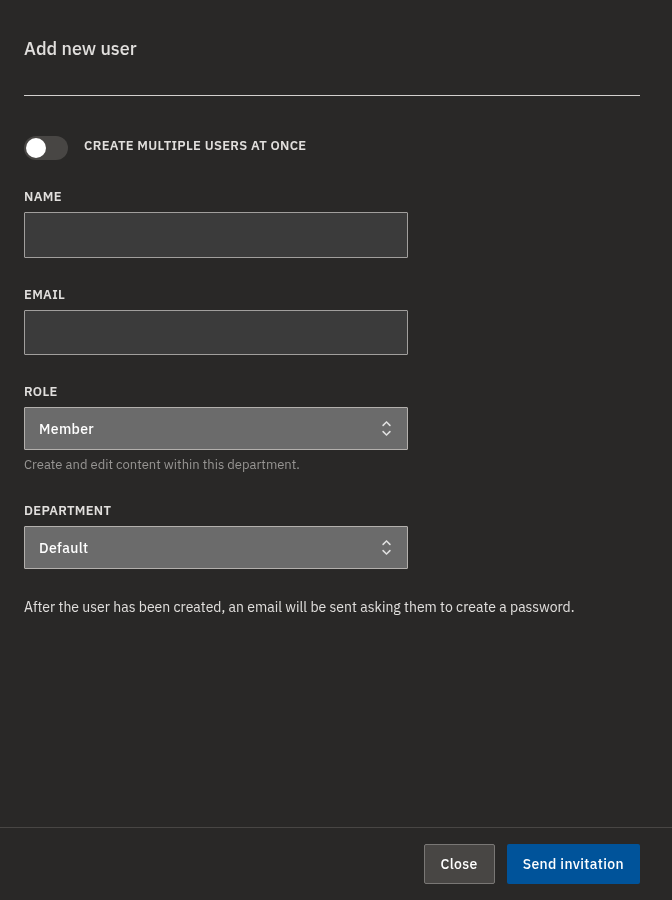
- Click Add new user.
- Leave the multi-user toggle off for a single person, then enter their Name and Email.
- Choose a Role (only roles you're allowed to assign appear).
- If it's a department role, choose the Department to add them to.
- Click Send invitation.
The new user receives an email asking them to create a password before they can sign in.
Invite multiple users at once
- Click Add new user.
- Turn on Create multiple users at once.
- Paste the addresses into the Emails box, separated by commas, semicolons, or new lines.
- Choose the single Role and Department that will apply to everyone in the list.
- Click Send invitation. Each address receives its own email to set a password.
Info
In bulk mode, every invitee gets the same role and department — there's no per-person override. Invite people separately if they need different access.
Add an existing user to a department
From the department's detail page:
- Open the department's detail page.
- Click Add member.
- Search by name or email and select one or more people.
- Pick the Role to give them in this department (Managers can only add Members).
- Click Add member.
From the user's detail page:
- Open the user's detail page.
- Under Department memberships, click Add to department.
- Select the Department and the Role.
- Click Add.
💡
If someone you expect to see is missing from the Add member search, they're probably already in that department — or they're an Organization admin, who already has access everywhere and so isn't listed.
Change a member's role or remove them
- You must be an Organization admin, or an Admin of that department.
- Open the department detail page (or the user's Department memberships section).
- Change the member's Role, or click Remove to take away their access to that department.
You cannot change your own role or remove yourself if you are the last Admin of the department.
Make someone an Organization admin
- You must already be an Organization admin.
- Open the user's detail page.
- Enable Grant organization admin privileges and confirm.
Warning
Granting Organization admin removes all of that user's current department memberships, because Organization admins don't belong to individual departments. If you later revoke it, you'll need to re-add them to any departments they should work in.
Managing departments
Create a department
- You must be an Organization admin.
- Go to the Departments page.
- Click Create department.
- Enter a Department name and confirm.
Rename a department
- You must be an Organization admin, or an Admin of that department.
- Open the department from the Departments list.
- Click Rename, edit the name, and save.
Delete a department
- You must be an Organization admin. (The Default department can never be deleted.)
- First move or delete all content the department owns — displays, playlists, media, groups, locations and devices.
- Remove all members from the department.
- On the Departments page, choose the department and confirm the deletion.
Warning
A department can't be deleted while it still owns content or still has members. Clear both first, otherwise the delete won't go through.
Viewing other departments
By default, departments are fully isolated — you only see the ones you belong to. Browsing other departments read-only takes two switches: an Organization admin turns on Allow cross-department view in Organization settings, and each person who wants to look around then turns on Browse other departments (read-only) under Department Preferences in their own Account Settings. (Organization admins always see every department and don't need either step.) You can then switch to another department and browse its content read-only: view and reference it, but not edit it.
Browse another department read-only
- Make sure Allow cross-department view is enabled for your organization.
- In your Account Settings, under Department Preferences, turn on Browse other departments (read-only).
- Open the department switcher and select a department you're not a member of.
- You're now browsing that department read-only — everything is visible but nothing is editable.
- Use Switch back to return to a department where you can make edits.
💡
The Browse other departments (read-only) preference applies to everyone except Organization admins, who always see every department. Turning it on reveals the other departments in the switcher — it doesn't grant any edit access.
Info
Read-only viewing never grants edit access. To make changes in a department, you must be a member of it with an Admin, Manager or Member role.
FAQ
What's the difference between an Organization admin and a department Admin?
A: An Organization admin has full access to the entire organization — every department plus organization-wide settings and billing — and isn't tied to any single department. A department Admin only manages one department: its content, its members, and its settings.
Which department will my new content belong to?
A: Whichever department is currently active in your department switcher. Switch to the right department before creating content, and check the Department field on the create form.
I invited someone but they can't log in yet — why?
A: Invited users first receive an email asking them to create a password. They can sign in once they've completed that step.
Can a Manager add new people to a department?
A: Yes, but only as Members. Managers can invite and add Members and manage content; changing roles, removing members, and adding Admins or Managers are reserved for department Admins and Organization admins.
How do I make someone an Organization admin?
A: On the user's detail page, an existing Organization admin enables Grant organization admin privileges. Note that this removes all of that user's individual department memberships, because Organization admins aren't tied to a single department.
Why don't I see some users when adding members to a department?
A: The picker hides users who are already in that department, and hides Organization admins — since they already have access to every department.
Why can't I delete this department?
A: A department can only be deleted once it's empty. Move or delete everything it owns (displays, playlists, media, groups, locations, devices) and remove all of its members first. The Default department can never be deleted.
Can I see another department's content?
A: If your organization has Allow cross-department view enabled — and you've turned on Browse other departments (read-only) in your Department Preferences — you can switch to another department and view its content read-only. Otherwise, departments are fully isolated and you'll only see your own.
Need help?
Still have questions about departments, users or roles? Contact Bohemica support — we're happy to help.