The Devices Page: Status and Updates
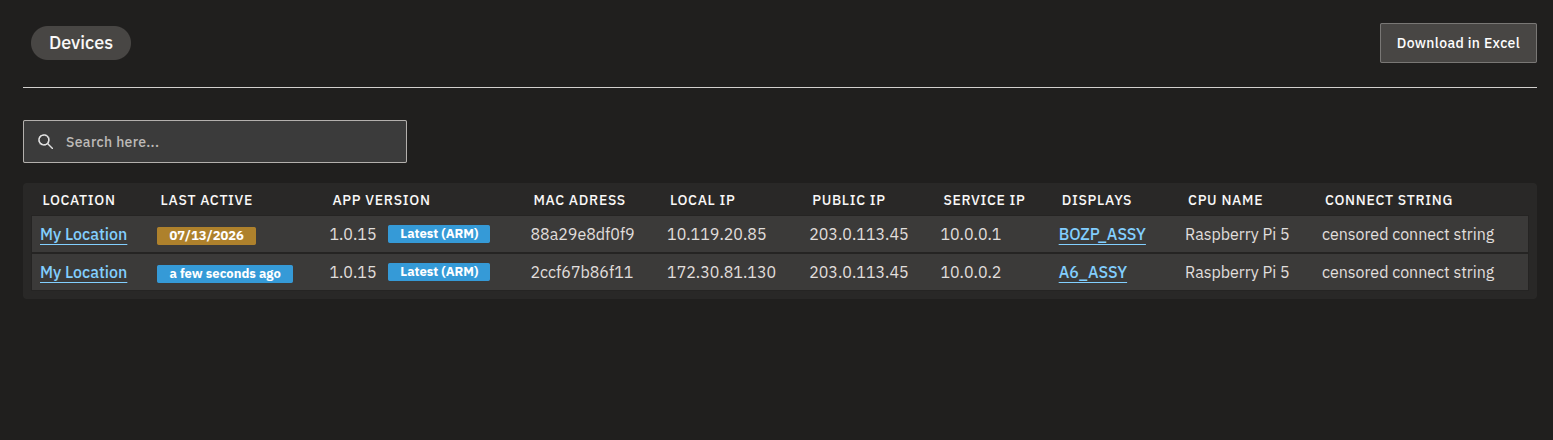
The Devices page is a single list of every physical player in your account. It is where you go to answer the everyday questions: Is this player online? Which Display is it driving? Is it running the latest software? This article walks you through reading that list and acting on what it tells you.
Info
A Device is the physical player box plugged into your screen. A Display is the on-screen setup you configure in the dashboard. They are linked together by Pairing, and one Device can drive one or more Displays. The Devices page is separate from any individual Display's detail page — for monitoring a single Display's playback, see Monitoring and Operating Displays.
Opening the Devices page
- In the dashboard's left-hand menu, click Devices.
- The page lists every physical player in your account, along with its status, location, network details, and app version.
Each row is a single player. Click anywhere on a row to open that device's detail page.
What the columns show
| Column | Meaning |
|---|---|
| Location | Where the player is installed (if a location has been set). |
| Last active | When the player last reported in — and so whether it is online. See Checking whether a player is online. |
| App version | The player app version and whether it is up to date. See App version and updates. |
| MAC adress | The player's hardware network address. |
| Local IP | The player's address on your local network. |
| Public IP | The player's address on the internet. |
| Service IP | The maintenance address used by support. |
| Displays | The Display(s) this player drives, each shown as a clickable link. |
| CPU name | The player hardware's processor. |
| Connect string | The pairing words used to link the player (see Pairing). |
💡
Click any column header to sort by it. The App version column sorts by version number, so it's an easy way to group together every player that needs updating.
Spotting players that need attention
The list is built for a quick health scan — two columns do most of the work:
- Last active — a recent check-in is highlighted in blue; an older date is highlighted in yellow, which is your cue to look closer at that player.
- App version — a blue badge means the player is up to date for its hardware; a player showing an available update catches up on its nightly restart (see App version and updates).
When a player needs attention, the Displays column links straight to the screen(s) it drives, so you can tell at a glance which screens are affected. Click the row to open the device's detail page for its status history and screen outputs.
Checking whether a player is online
The Last active column tells you, in plain terms, whether a player is reporting in:
| Last active shows | What it means | What to do |
|---|---|---|
| A very recent time | The player checked in moments ago — it is online and reporting normally. | Nothing — all good. |
| An older date | The player has not reported in recently. Assume it's offline or has a connection problem. | Run the quick checks below. |
| No report yet | The player has never reported in. | Confirm it has been set up and paired (see Pairing). |
| A restart in progress | The player is currently rebooting. | Wait a few minutes for it to come back online. |
If a player looks offline
Most offline players come back with a couple of quick checks on site — try these before contacting support:
- Power-cycle the player — unplug it, wait a few seconds, and plug it back in.
- Check the connection — make sure the network cable is firmly seated, or that the site's Wi-Fi is working. A player that keeps dropping off Wi-Fi is usually happier on a wired ethernet connection.
- Look at the location as a whole — if every player at one site is offline, the site's internet or power is the usual cause, not the players.
If the player still doesn't report in after these checks, contact support and we'll take a look together.
Seeing which Display(s) a player drives
- Find the player's row and look at the Displays column.
- Each linked Display appears as a clickable link — click it to open that Display.
- If no Display is listed, the device isn't linked to one yet. See Pairing to link one.
A single player can drive more than one Display, so this column may list several. To change what plays on a Display, see Creating and Configuring Displays.
App version and updates
The App version column shows the version each player is running and whether it is current.
- Look at the App version column for the player's version number. Alongside it, the column tells you whether that version is up to date for the player's hardware or whether a newer version is available.
- Updates apply when the player restarts. Every player restarts itself automatically overnight, so a pending update normally installs on its own by the next morning. To install it right away, reboot the device instead of waiting.
Warning
Updates are not pushed instantly — a player only updates when it restarts. Because of the automatic nightly restart, you normally don't need to do anything: it's normal for a player to keep showing an available update until that restart happens. Reboot manually only when you want the update applied immediately.
Searching for a specific player
- Use the search box at the top of the list.
- Type any identifying detail — MAC address, pairing words (the connect string), an IP address, app version, or location name.
- The list filters to matching devices as you type.
Exporting the device list to Excel
- Click Download in Excel in the top-right of the Devices page.
- An Excel file named My Signage Devices.xlsx downloads to your computer.
Warning
This export is sensitive. In addition to location, status, and version details, it contains remote-access information that lets someone connect to your players. Store the file securely and only share it with your own IT staff or Bohemica support — never circulate it more widely.
Info
Connecting to a player remotely (for troubleshooting via the maintenance address or other access details in the export) is intended for your IT team or Bohemica support, not for day-to-day use. Reach out to us if you think a player needs hands-on attention.
FAQ
How do I tell if a player is online or offline?
A: Look at the Last active column. A very recent time means the player is online and reporting in. An older date means it has not reported recently and is likely offline. If the player has never reported in at all, confirm it has been set up and paired.
A newer app version is available for my player — how do I update it?
A: Normally you don't need to do anything — players restart automatically every night and install pending updates as they do. To update immediately, reboot the device; after the restart the App version column shows the player as up to date.
What happens while a player is rebooting?
A: A restarting player temporarily stops reporting in. The reboot usually takes a few minutes; once it finishes, the player reports in again and shows a normal Last active time.
Is the Excel download safe to share?
A: No — handle it carefully. The Download in Excel file includes sensitive access details. Only share it securely with your IT team or Bohemica support.
What's the difference between a Device and a Display?
A: A Device is the physical player hardware that plays content on a screen; a Display is the on-screen setup you configure in the dashboard. They are paired together, and one Device can drive one or more Displays. The Devices page shows which Display(s) each player is currently driving.
Need help?
Can't find a player, or seeing a status you don't expect? Our support team is happy to help — reach out and we'll take a look. You may also want to review who can see and manage devices in Departments, Users & Roles.