Your Account Settings
Your Account Settings screen is where you manage your own login security. From here you can change your password, update the phone number on your account, set up two-factor authentication, and review a history of recent sign-ins. Everything on this screen applies to your account only — each person on your team manages their own credentials here.
The screen opens on an Account Security section, which groups together your Password, Phone Number, and Two-Factor Authentication. Below that, a Login History table shows your recent sign-ins.
💡 A habit worth keeping
Glance at your Login History now and then. It's the easiest way to notice a sign-in that wasn't you.
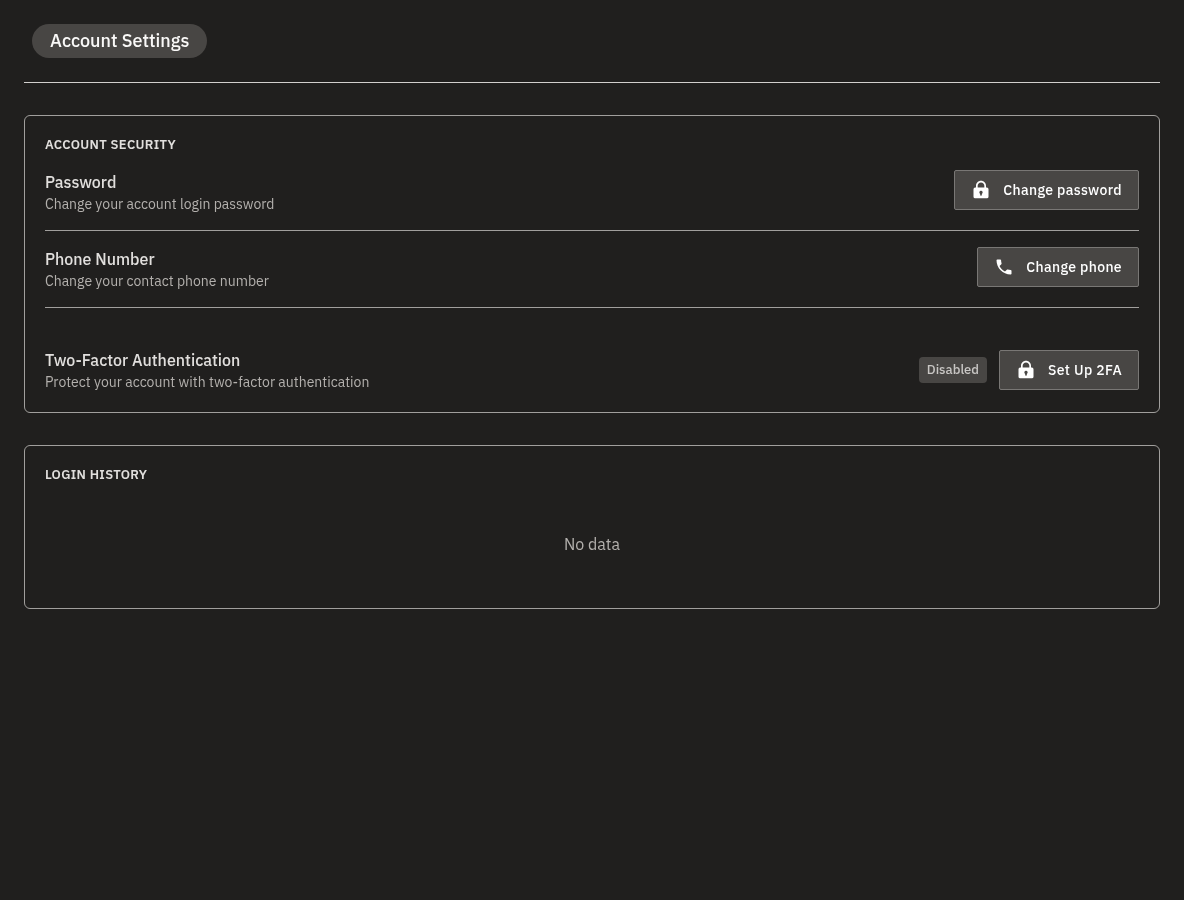
Change your password
If you sign in with an email address and password, you can change that password at any time.
- Open Account Settings and find the Password row in the Account Security section.
- Click Change password.
- Enter your current password in Old password.
- Enter your new password in New password. It must be at least 8 characters long.
- Type the same new password again in Repeat password — the two must match.
- Click Change password to save. Your new password takes effect immediately — use it the next time you sign in.
Wrong current password
If the current password you enter doesn't match, nothing is changed. Re-enter your existing password carefully and try again.
Signing in with Google or Microsoft?
Accounts that use single sign-on (SSO) don't have a separate Bohemica Signage password, so the Password section doesn't appear for you at all. Manage your password with Google or Microsoft instead.
Change your phone number
Your phone number is used to contact you about your account and, if you choose, for SMS two-factor authentication.
- Open Account Settings and find the Phone Number row, which also shows the number currently on your account.
- Click Change phone.
- Enter the New phone number. It must be different from your current one.
- If you sign in with a password, enter it in Current password for confirmation — the number only changes once the password matches. (SSO users aren't asked for a password here.)
- Click Change phone to save. The new number is active on your account straight away.
Phone locked while SMS 2FA is on
While SMS two-factor authentication is active, your phone number can't be changed. Temporarily disable SMS two-factor authentication in the Two-Factor Authentication settings first, change the number, then turn it back on.
A couple of things to know:
- The new number must be different from your current one.
- A number that's already in use by another user can't be added to your account.
Two-Factor Authentication
The Two-Factor Authentication section shows whether two-factor sign-in is currently active on your account, and is where you turn it on or manage an existing setup.
Two-factor authentication adds a second step at sign-in — scanning a QR code with an authenticator app and entering the 6-digit code, or receiving a code by SMS — and gives you recovery codes to keep safe. The full setup walkthrough lives in its own article: Two-Factor Authentication.

Review your login history
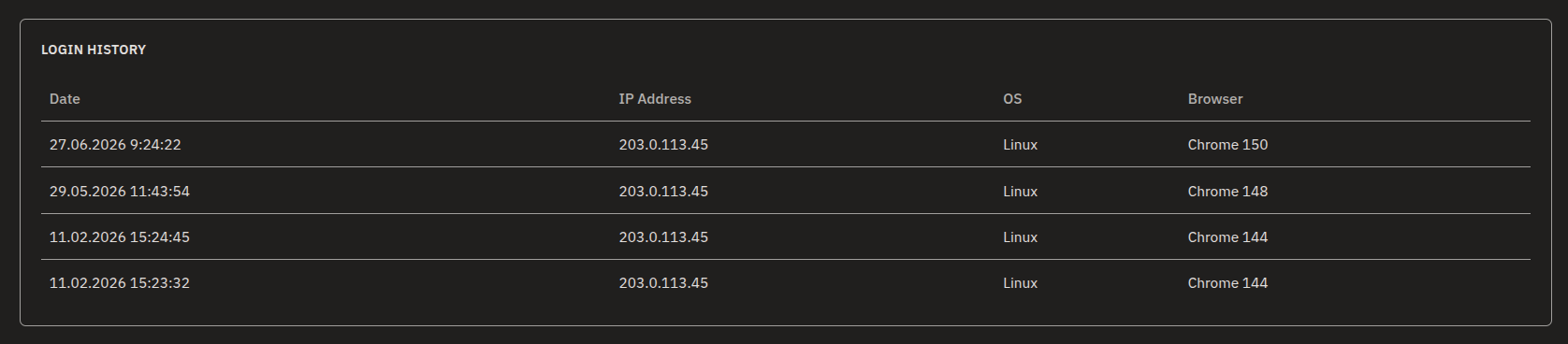
The Login History table lists your recent sign-ins so you can confirm they were all you.
- Open Account Settings and scroll to the Login History section.
- Review the table. Each row shows the following:
| Column | What it shows |
|---|---|
| Date | When the sign-in happened, as day.month.year hour:minute:second. |
| IP Address | The network address the sign-in came from. |
| OS | The operating system used. |
| Browser | The browser used. |
- Scan for anything you don't recognize — an unfamiliar IP address, device, or browser.
- If something looks wrong, change your password and review your two-factor authentication settings.
A note on Department Preferences
If your organization uses multiple departments with cross-department viewing enabled, you may also see a Department Preferences section with a Browse other departments (read-only) option. This isn't part of your personal login security — it controls how you browse content across departments. You'll find it explained in Departments, Users & Roles.
FAQ
I sign in with Google (or Microsoft). Why don't I see a way to change my password?
Accounts that sign in through single sign-on (SSO) don't have a separate Bohemica Signage password, so the Password section doesn't appear. Manage your password with Google or Microsoft instead. As an SSO user, you also aren't asked for a password when changing your phone number.
Why can't I change my phone number?
If SMS two-factor authentication is turned on, your phone number can't be changed until you turn it off. Temporarily disable SMS 2FA in the Two-Factor Authentication settings, change your number, then re-enable it.
What are the password requirements?
Your new password must be at least 8 characters, and you must type it identically in both New password and Repeat password. You also need to enter your current password in Old password to confirm the change.
What is the Login History for?
It lists your recent sign-ins with the date, IP address, operating system, and browser. Use it to spot any sign-in you don't recognize. If you see something unfamiliar, change your password and review your two-factor authentication.
I got "Wrong old password." when changing my password. What now?
The current password you entered didn't match. Re-enter your existing password carefully in the Old password field and try again.
I got "Wrong password." when changing my phone number. What now?
The password you entered in Current password for confirmation didn't match, so your phone number wasn't changed. Re-enter your current password and try again.
Need help?
Still have questions about your account security? Contact Bohemica support — we're happy to help.