Previewing What a Screen Is Showing
Want to confirm a screen in your store or office is showing the right content, without driving over to check? The Display detail page in the Bohemica Signage dashboard includes a live preview that mirrors what should be playing right now, plus a list of what's coming up next. This article shows you how to use it.
Info
This preview is for remote checking — think of it as a "what should be playing now" view. It's a close approximation, not a pixel-perfect mirror of the physical screen. For how to link a player to a Display in the first place, see Pairing a Display with a Device.
Where the Preview Lives
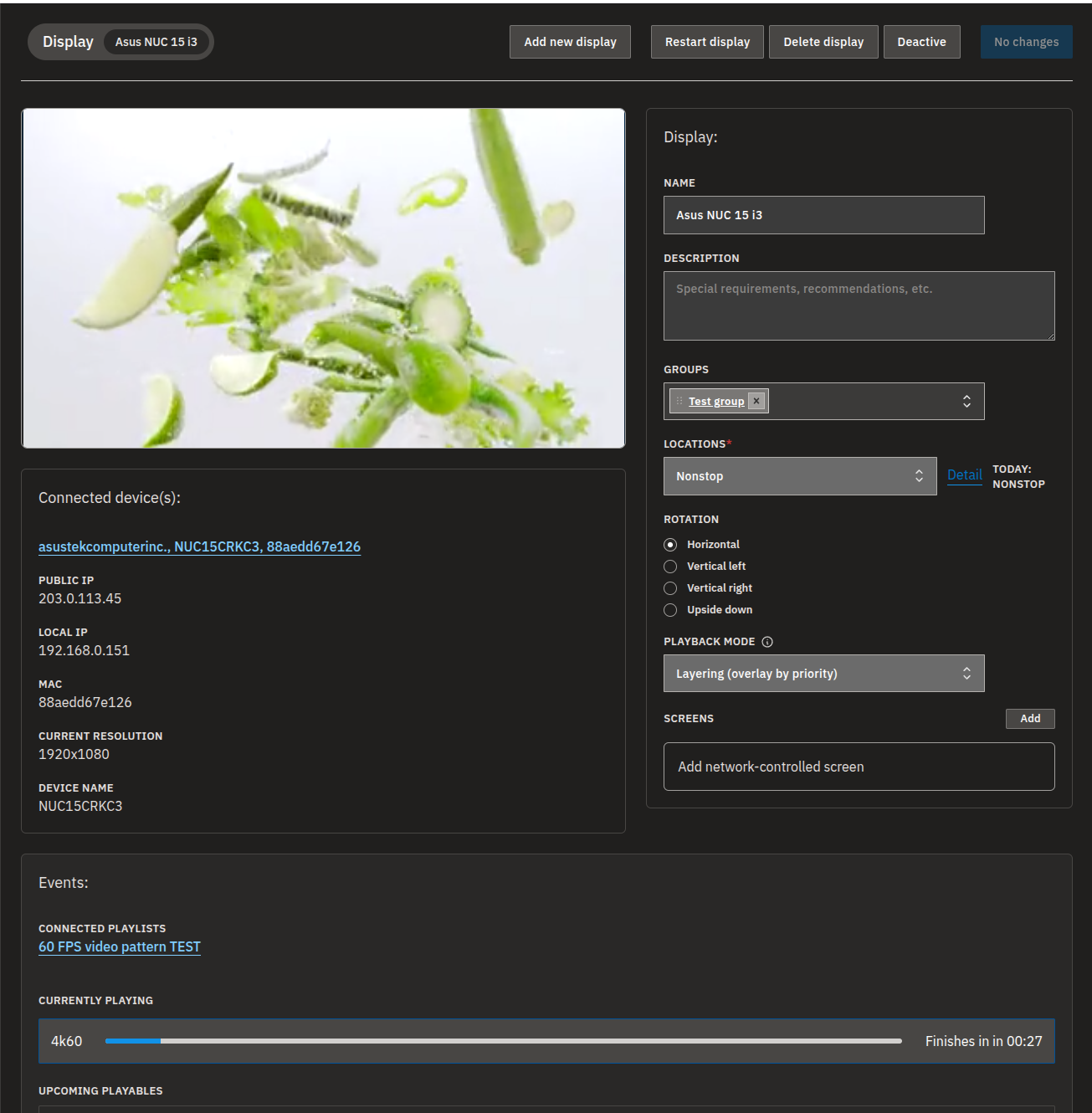
Everything in this article is on a single Display detail page:
| Area | What you'll see |
|---|---|
| Preview card (top of the page) | The item playing right now — an image, video, audio, or web page. |
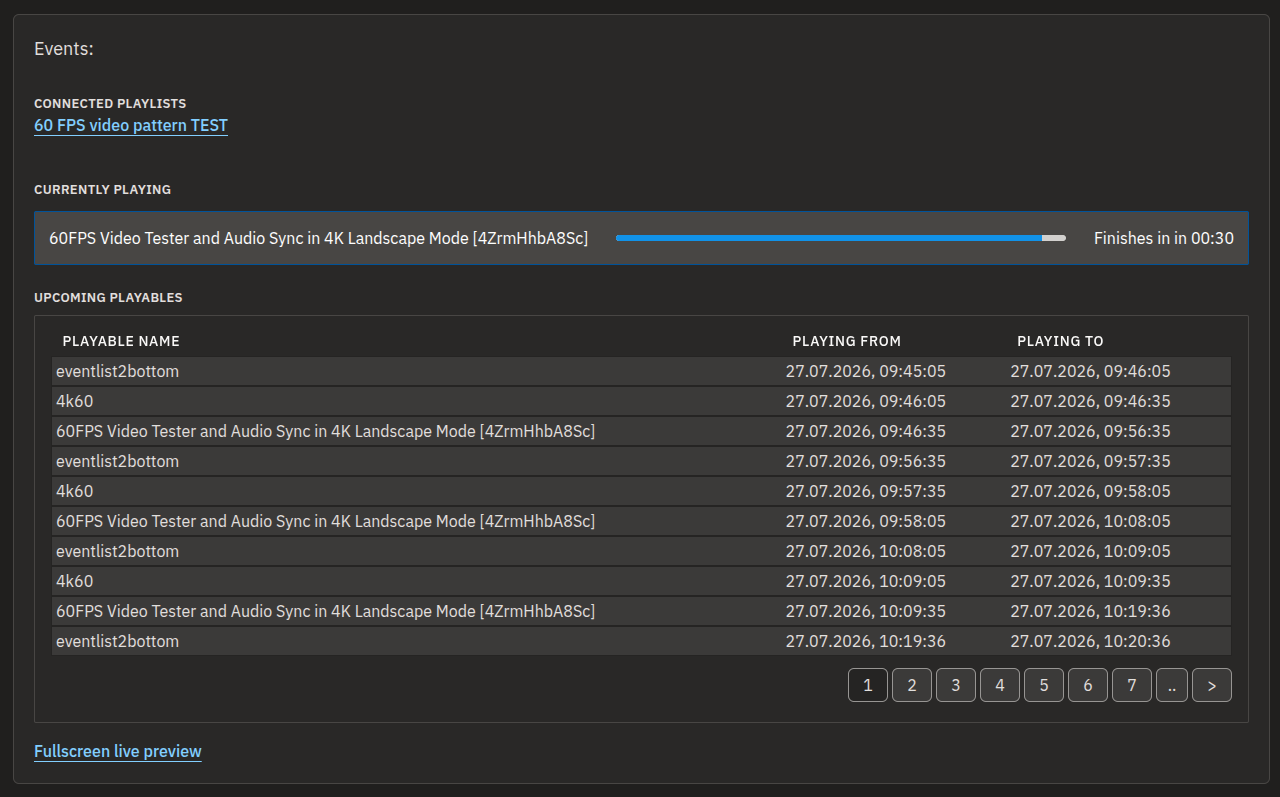
| Events section (below the settings) | Currently playing, Upcoming playables, and Connected playlists, plus the Fullscreen live preview link. |
The preview and the events update automatically while the page is open, so you'll see changes without reloading.
Check What a Screen Is Showing Right Now
- Open the dashboard and go to the Displays list, then select the display you want to check.
- Look at the preview card at the top of the page. It mirrors the item currently on the screen — an image, a video, audio, or a web page.
- Scroll down to the Events section and read the Currently playing card to see the item's name.
- Check the Finishes in countdown to see how long until the current item ends and the next one starts.
💡
Want to open the item itself? Click the Currently playing card (or any upcoming item) to jump straight to that playable's detail page.
See What Will Play Next
- On the Display detail page, scroll to the Events section.
- Find the Upcoming playables table.
- Read the Playable name, Playing from, and Playing to columns to see the schedule.
- If the list is long, use the table's pagination to view further items.
- Select any row to open that playable's detail page.
Open the Fullscreen Live Preview
For a quick visual confirmation — handy for keeping an eye on a screen from a second monitor — open the dedicated full-window preview.
- On the Display detail page, scroll to the Events section below the settings.
- Click the Fullscreen live preview link near the upcoming list.
- The now-playing content fills the window and keeps updating as the schedule advances.
- Return to the Display detail page when you're finished.
See Which Playlists Feed the Display
- On the Display detail page, go to the Events section.
- Find Connected playlists and read the listed playlist names.
- Click a playlist name to open its detail page and review its content.
Connected playlists are the playlists feeding this display through its groups. To change what's connected, see Managing Display Groups and Creating Playlists.
How Different Content Looks in the Preview
The preview handles each kind of content a little differently:
| Content type | How it appears in the preview |
|---|---|
| Image | Shown in the preview card. |
| Video | Plays with standard playback controls. In the preview it is muted and loops — this is preview behavior only and doesn't change what plays on the actual screen. |
| Audio | Plays with standard playback controls. |
| Web page | Shown as a periodically refreshed screenshot, not a live, clickable page. |
Info
A web page in the preview updates from time to time, so it can lag slightly behind the real page, and you can't click around inside it. On the actual screen it plays as normal web content.
When You See a Message Instead of Content
Sometimes the preview has nothing to play. Here's why that happens and what to do:
- The display isn't activated yet — an unactivated display doesn't play a schedule, so there's nothing to preview. Activate the display (see Monitoring and Operating Displays) and the preview will then show what's playing.
- Nothing is scheduled — when no content is scheduled, the preview stays empty; if a future item is already scheduled, it shows when that item will start. To schedule content, put the display in a group and assign a playlist to that group — see Managing Display Groups.
- Unsupported media — the preview can't render every media type, so an unsupported item isn't previewed.
Warning
Just created a schedule and the preview still looks empty? Events can take a moment to generate after you set up a schedule, so give the preview a few seconds to populate.
Warning
The preview reflects the schedule the dashboard knows about. If the physical player has been offline and hasn't checked in for a while, it may still be showing its last downloaded content on the actual screen — something the preview alone can't detect. If a screen looks out of date in person, check that the player itself is online and connected.
FAQ
Can I see what my screen is showing without going to the store?
A: Yes. Open the display in the dashboard and use the preview card and the Currently playing card on the Display detail page, or open the Fullscreen live preview. They show the item that should be playing right now.
Why does a web page in the preview look like a static image?
A: Web-page content is shown in the preview as a periodically refreshed screenshot rather than a live, interactive page. It updates from time to time, but you can't click around inside it.
What does the "Finishes in" countdown mean?
A: It shows how much time is left before the currently playing item ends and the next scheduled item begins.
Why does the preview say "Not activated"?
A: The display hasn't been activated yet. Activate the display so it can play its schedule, and the preview will then show what's playing.
The preview says nothing is scheduled. What should I do?
A: Put the display in a group and assign a playlist to that group. Once content is scheduled, it appears in the preview and in the Upcoming playables list.
What are "Connected playlists"?
A: They're the playlists currently feeding this display through its groups. Each name links to that playlist so you can review its content.
Need help?
Still not sure what your screen is showing? Contact our support team and we'll help you confirm your displays are playing the right content.